Branches & story tree
Marginalia never makes you throw a version away. Every alternative you try is kept as a branch of the story, and you can go back to any of them.
How the story tree works
Each part continues the part before it. When a part has more than one continuation, the story splits: each path from the first part to an end is a branch.
#1 ─ #2 ─ #3 ─ #4 ─ #5          ← branch A
           └─ #4' ─ #5' ─ #6'   ← branch B (active)
The active branch is the one the story editor shows and continues. Only its parts are sent to the model; the other branches don't influence the story.
There are three ways to get a new branch:
Swipe and Regenerate are in the menu of the last part only; Branch Story is in the menu of every part.
Trying another version of the last part
When you don't like the last part, choose Swipe in its menu. The model writes the part again from the same
turn details, and the new version becomes the end of the active branch. The previous
version is kept as its own branch; you can switch back to it in the
To change what should happen before trying again, open Turn Details of the last part and edit the instructions.
Use Regenerate alone when you don't need the old version: it overwrites the part.
Branching from an earlier part
To take the story in a different direction from an earlier point, open the menu of that part and choose Branch Story. Marginalia copies the part to a new branch and makes it the end of the active branch, so the story editor now ends with that part. Continue with + as usual.
The parts that came after it are not lost: they stay on the old branch.
Summaries of the copied part are copied with it.
The Branch view
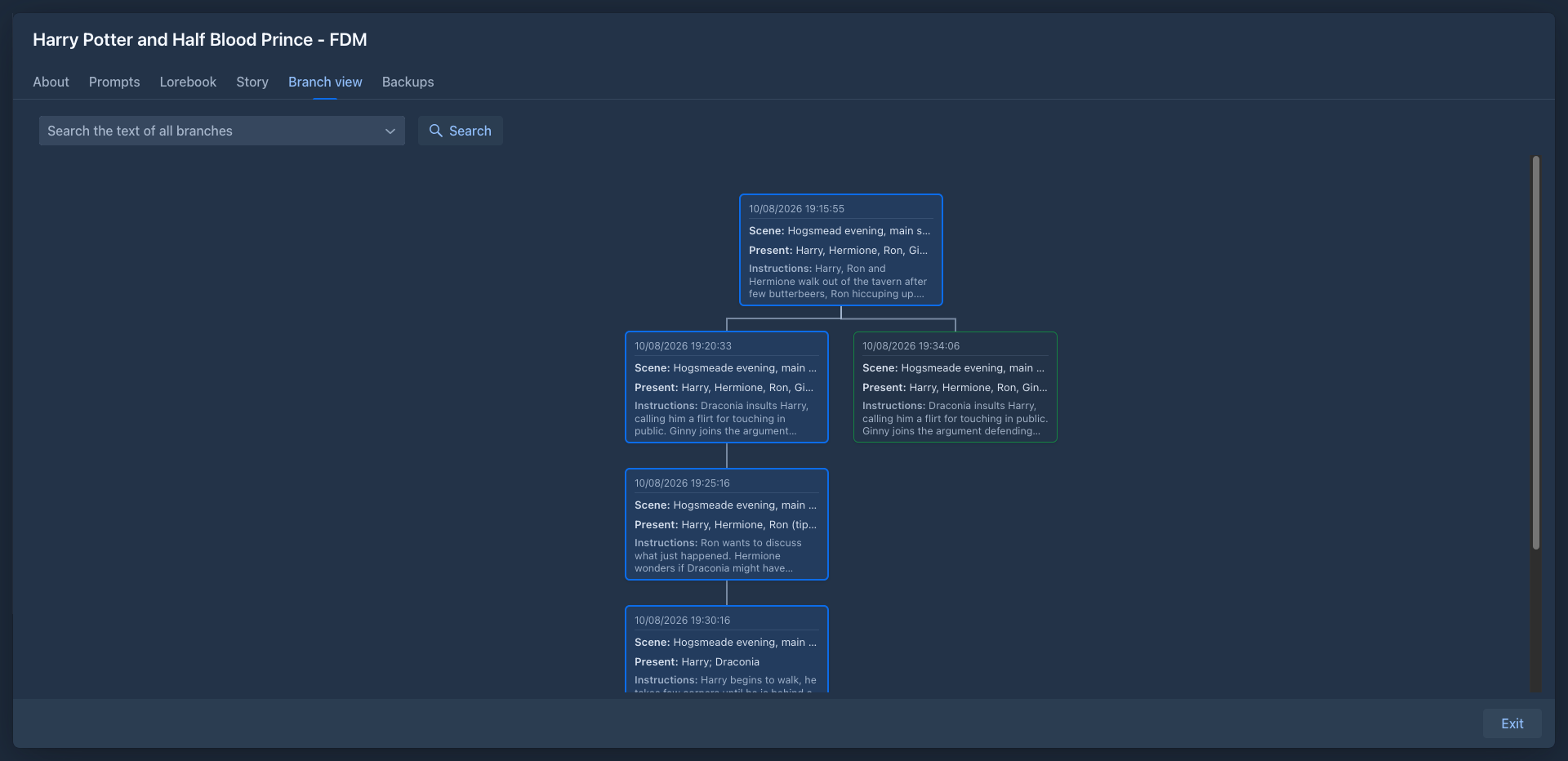
The Branch view tab shows the whole story tree. Each part is a card with its date, scene setting, characters present and instructions; hover over a card to see all its details.
-
The parts of the active branch are highlighted, and its last part is marked.
-
Click the last part of another branch to make that branch active. The book switches to the Story tab and shows it. Only the ends of branches can be clicked; to continue from a part in the middle, use
Branch Story . -
Long stretches without any branching (more than 20 parts) are collapsed into a block showing the first ten and the last ten parts. Click the block to show all parts.
Searching all branches
The box above the tree searches the text of all branches of the book, not only the active one. Type what you are looking for and press Enter or click Search; the box remembers your last searches, pick one from the list to repeat it. The x in the box clears the search.
-
A part matches when its text contains every word you typed, in any order:
lighthouse keyfinds the parts that have both words. Put words in double quotes to look for a phrase:"lighthouse key". -
Use
*for any characters:light*finds lighthouse and lightning. Other characters, including%,_and\, are searched as they are. -
Upper and lower case do not matter. For accented letters, a word typed in lower case also finds the same word in UPPER CASE or Capitalized (
žluťoučkýfinds Žluťoučký and ŽLUŤOUČKÝ). -
Only the text of the parts is searched, not the instructions, scene setting or the lorebook. Parts that you deleted are not searched.
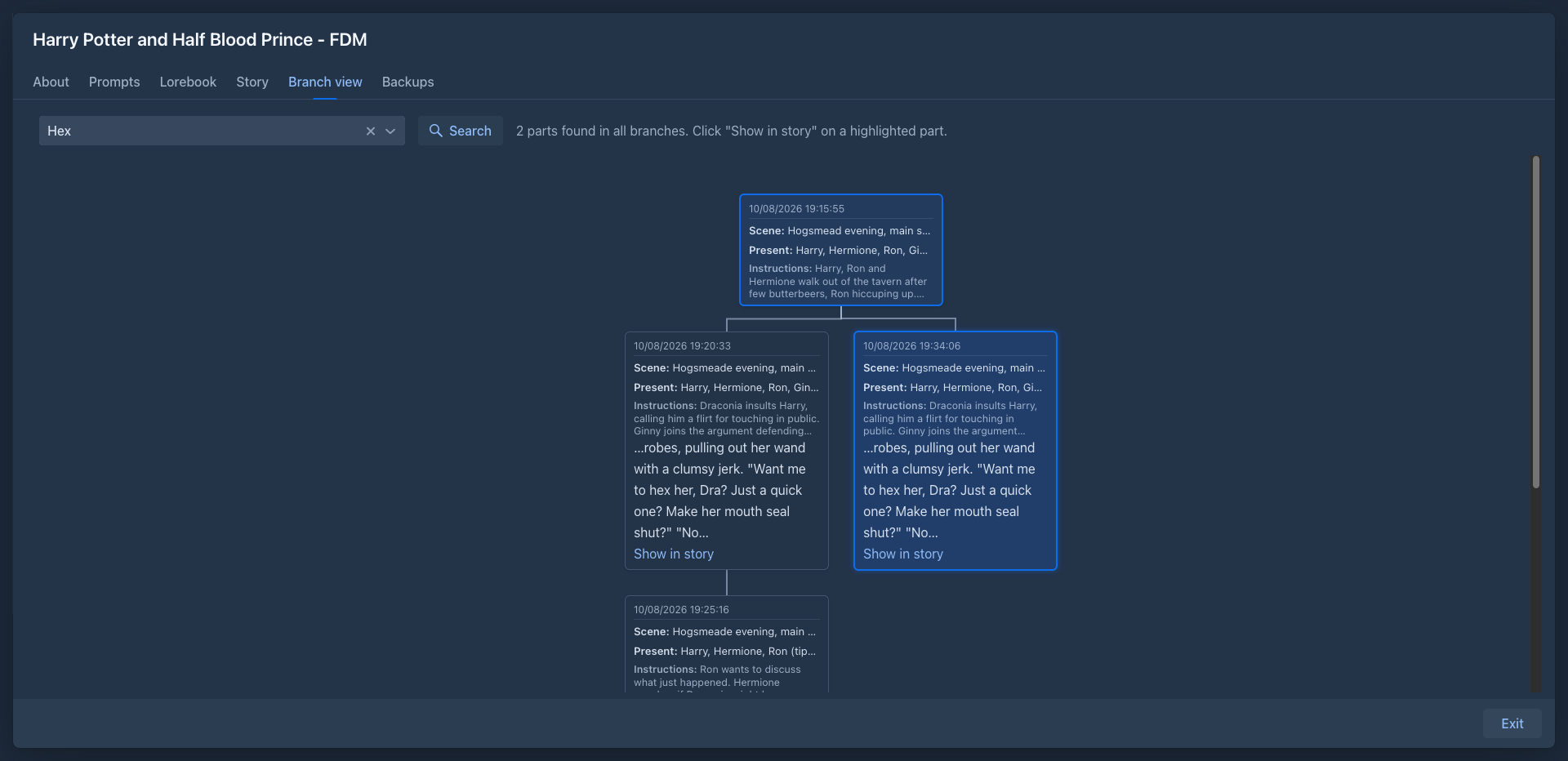
The check box Include versions next to the box also looks into the earlier versions of the text of the parts; a part that has the words only in an old version is highlighted too, says which version, and has Show in history next to Show in story.
Every part that matches is highlighted in orange and shows the text around the match; the line above the tree says how many parts were found. Long stretches that would be collapsed are opened when they contain a match. The search stays until you clear it or close the book window, and the highlighting is updated when you come back to the tab.
Click Show in story in a highlighted part to read it:
- When the part is on the active branch, the book switches to the Story tab and scrolls to it.
- When it is on another branch, that branch becomes the active branch first. It ends at the nearest end of a branch below the found part (the newer one when there are two), so the story editor shows the story up to the found part and what followed it. The book then switches to the Story tab and scrolls to the part, which flashes briefly.
Switching the branch is the same as clicking the end of a branch in the tree: nothing is lost, the previous branch stays as it was and you can go back to it from the tree.
Deleting parts and branches
Delete in the menu of a part removes just that part. The parts after it move up and continue from the part before it. To remove a whole branch, delete its parts from the end.
The word and token counts on the About tab show both the whole book (all branches) and the active branch.