State Tracker
Keeps track of the current state of your characters: what they wear, what they carry, the weapon at hand, their injuries, their mood, or anything else you define. It puts the state of the characters in the scene into the prompt. A model easily forgets that the sword was lost two chapters ago or that the cloak is soaked. With the State Tracker the prompt says, for every tracked character in the scene, what is true of it now.
You choose who is tracked and what is tracked about them. Only the characters you add to the tab are described to the model,
and only while they are among the present characters of the part being written. You can keep the state yourself, or let a
model read the story and propose the changes (see
Categories
A category is one thing that can be tracked about a character. Each category has:
- a name, which is also what the prompt calls it (Wearing, Weapon at hand, Carrying);
- a kind:
- Single value: one short value, and a new value replaces the old one (the weapon at hand, the location).
- List: entries that are added and removed one by one (what is carried, the injuries).
- Description: one text that is rewritten as a whole (the clothes, the mood).
- an instruction for the model: what belongs in the category and what does not. The model reads it when it follows the story.
- Only what the text says: on, the value changes only when the text says so; off, also on obvious consequences (wet after a swim).
- Say "none" when empty: the prompt says none when the character has no value (a lost weapon) instead of leaving the category out.
My categories
Your own categories are in Settings → Extension Settings → State Tracker. Books copy their categories from these. Until you change them you have five built-in ones: Wearing, Weapon at hand, Carrying, Injuries and Mood. Add, edit and delete categories there and press Save in the Settings screen. Reset to the built-in categories brings back the built-in five.
The categories of a book
A book keeps its own copy of every category it uses, so a backup or an export of the book has everything, and deleting one of your categories never breaks a book. The Categories of this book button in the State tab lists them:
-
Add from my categories copies one of your categories into the book.
-
New category for this book makes a category that exists in this book only (a ship's cargo, a magic attunement). Such a category is marked Only in this book. Save to my categories adds it to your categories, so other books can use it too.
-
A copy that is no longer the same as your category is marked Differs from your category. Update from my categories takes your version. Nothing is updated without you, because a changed instruction changes what the model does.
-
Editing a category changes it in this book only. Its kind can't change while characters have values of it.
-
Deleting a category from the book deletes the values of every character in it.
The State tab
The left sidebar of the story editor gets a State tab. Everything is saved to the book as you change it.
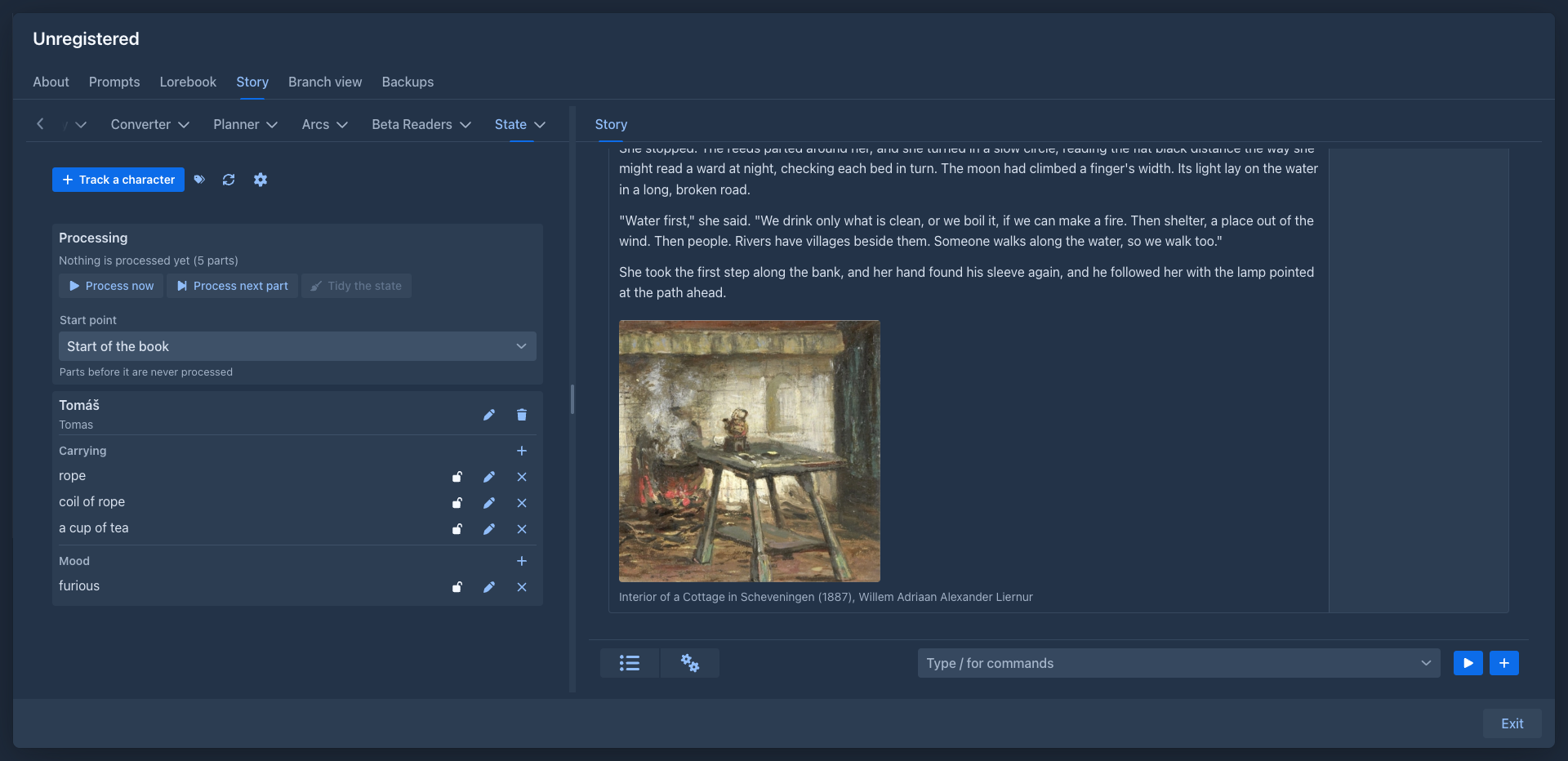
Track a character asks for a name, optionally aliases (the other names the character is written as in the Present Characters field of a part, separated by commas), and the tracked categories. The list offers the categories of the book and your own; picking one of yours copies it into the book. A horse can track only Injuries while the heroine tracks everything.
Import from the Character Tracker (the person icon next to Track a character) starts tracking characters of the Character Tracker of the same book. It lists the characters the book does not track yet (as a name or an alias) with their taglines, all of them ticked; untick the ones to leave out, check the tracked categories every imported character gets (the book's and your own, as above) and press Import. Only the names are taken; a character can get other categories later with the pen.
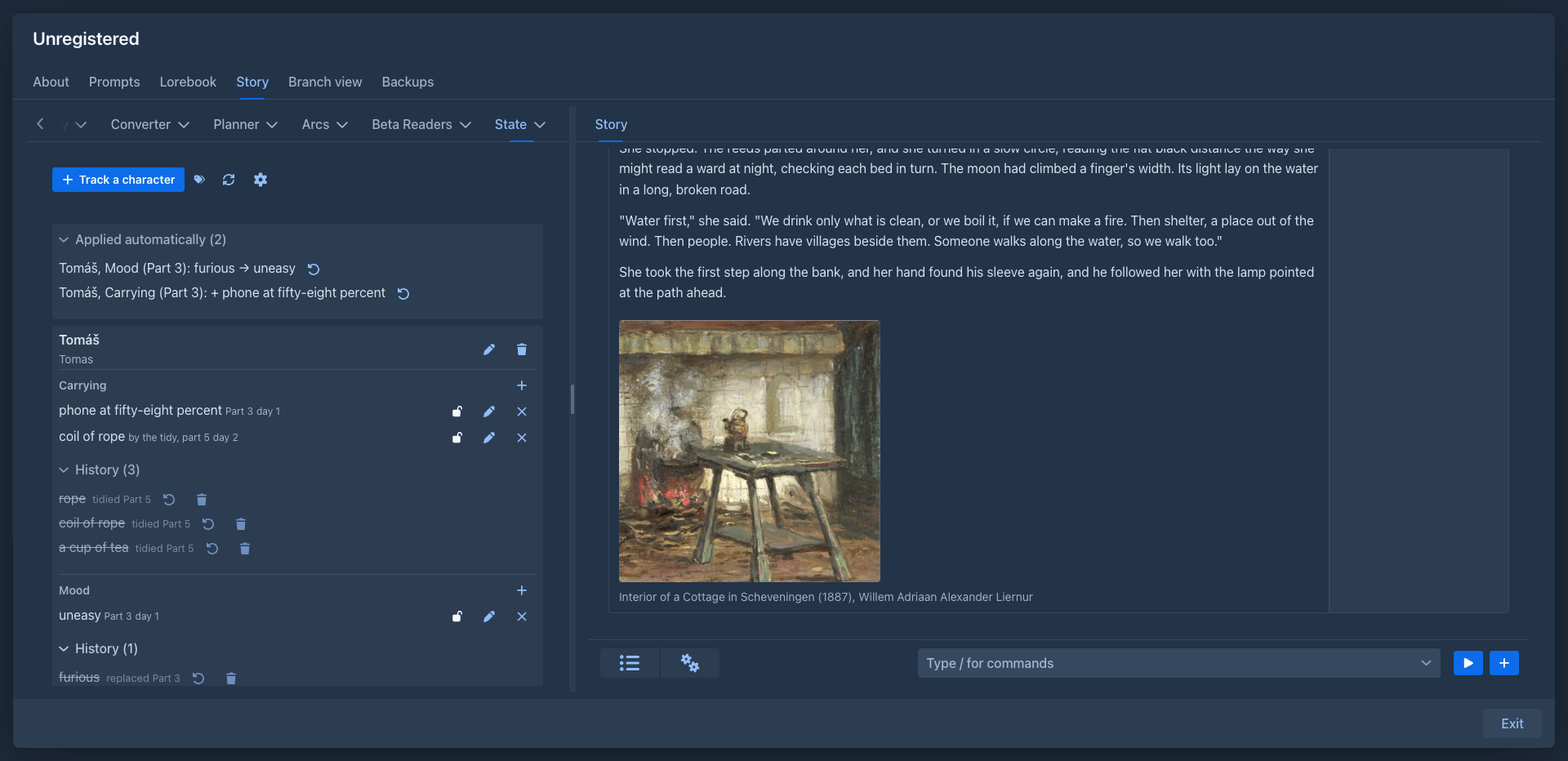
Every tracked character has a card, closed at first: open it with the arrow on the card to see its categories, each with its current value or values:
-
+ sets the value of a single or description category (the current value goes to the history) or adds an entry to a list.
-
The pen edits a value, the cross removes it: it is no longer true, so it goes to the history and is not sent to the model.
-
The lock marks a value as locked (a scar, the family sword). The
tidy leaves locked values alone; the story can still change them. -
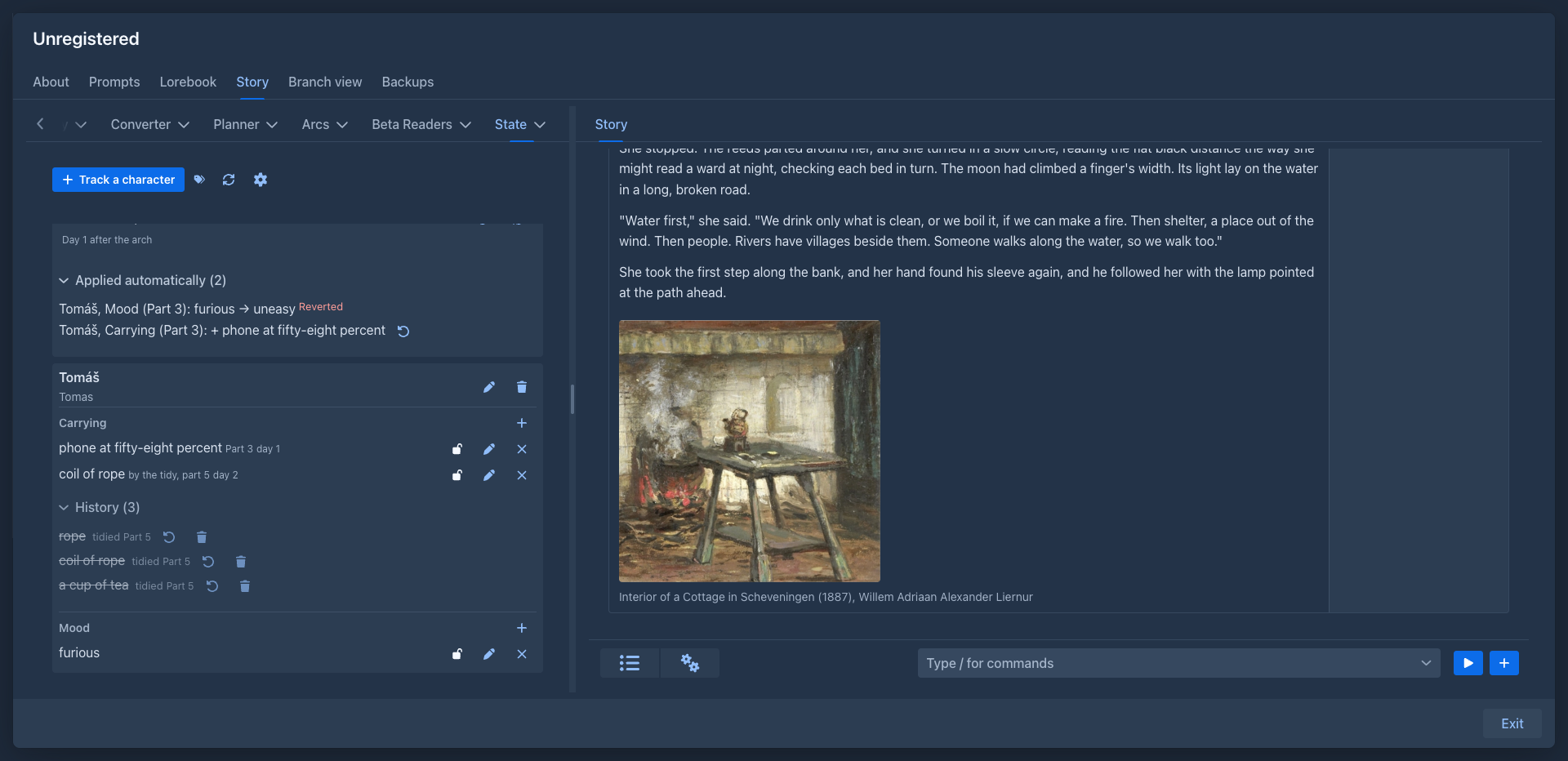
History shows the past values of the category with why they ended (replaced, removed or tidied) and, when the model ended them, the part it read that in. Restore makes a past value current again (for a single or description category the current one goes to the history in its place). Delete removes a value for good.
The pen of the character edits its name, aliases and categories. Unticking a category hides it but keeps its values; ticking it again brings them back. The bin stops tracking the character and deletes its whole state.
Following the story
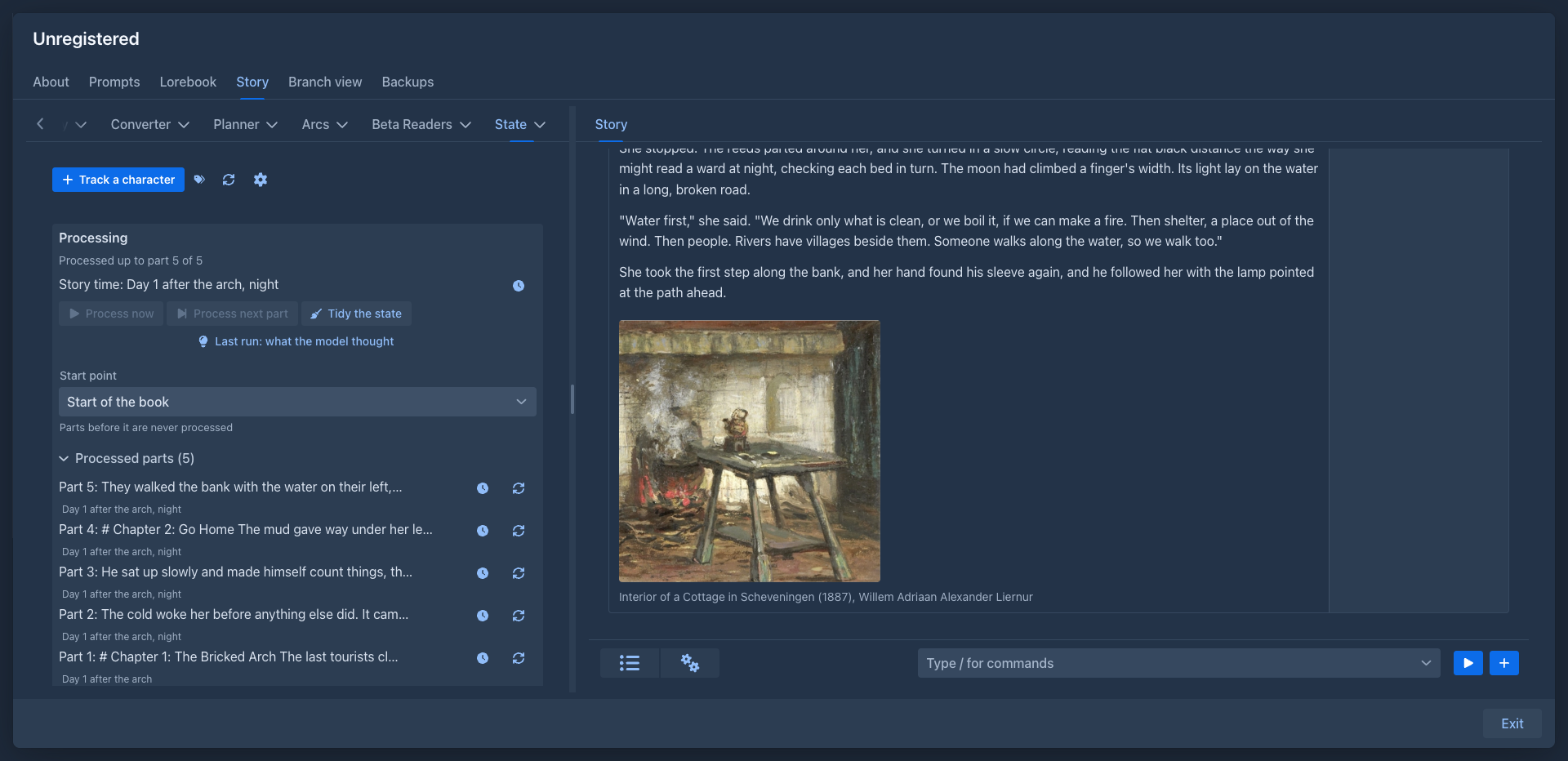
The Processing panel at the top of the State tab lets a model read the story and work out what changed: a cloak soaked in the river, a lantern handed to someone else, a sword drawn, a letter lost. It reads the parts of the active branch in order, from the Start point (the start of the book by default; parts before it are never read), and remembers how far it got.
-
Process now reads the parts that are not processed yet, Process next part only the next one. A long series asks first how many requests it will take. When you scroll down the list of characters past these buttons, Process now, Process next part and Tidy the state are also offered in the bar at the top of the tab.
-
The model gets the tracked characters that are present in the parts, with their categories, the instruction of each and the current values, and answers with the changes. Every change needs a quote from the part. Changes that do not fit (a category the character does not track, a value it has already, a quote from a part that does not exist) are left out.
-
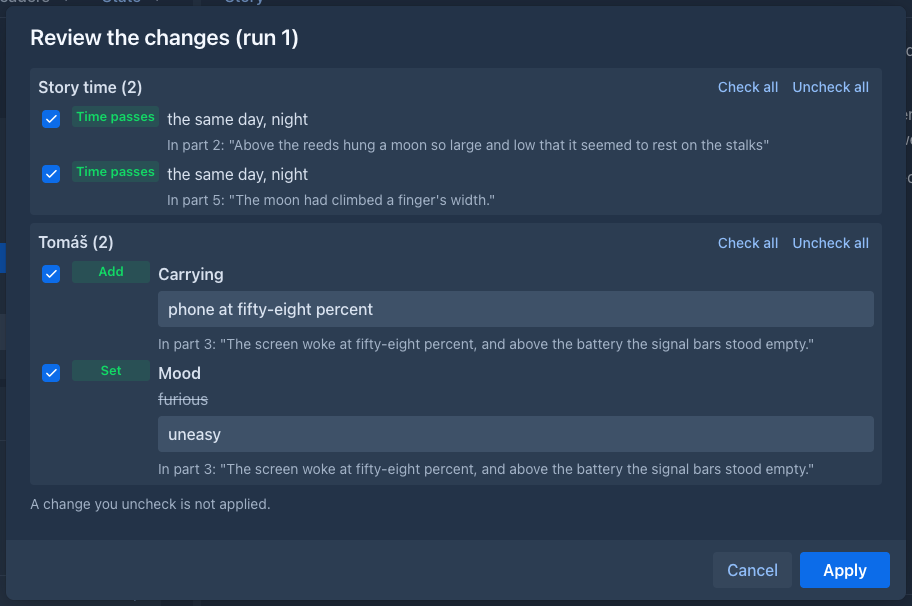
A panel shows the progress and what the model writes while it writes; you can go on reading and writing. With Ask before applying on (the default) the run waits for you: Review changes shows the changes per character, with the value that ends struck through and the new value, which you can correct, and the quote. Untick what is wrong and press Apply; Cancel leaves everything as it was, and the same parts are proposed again next time.
-
A value the model read shows the part it came from. Processed parts lists the parts that were read; Reprocess from here takes back everything read from that part and the later ones (values you wrote or corrected stay) and reads them again. Do it after you rewrote an earlier part. A regenerated part, a swipe or another branch take back what came from the parts that are no longer there by themselves.
The story clock
With Story clock on (in the settings, off by default) the model also follows the time of the story. In the same request as the state, it reports for every part what that part says about time: the next morning, three days later, that night, the fortieth day since you woke, on the twentieth of April, a vague the weeks blurred together (marked as approximate), or a flashback, a memory or a dream of the past, which does not move the clock and changes nothing in the state. The model does not count: the plugin adds the days up.
-
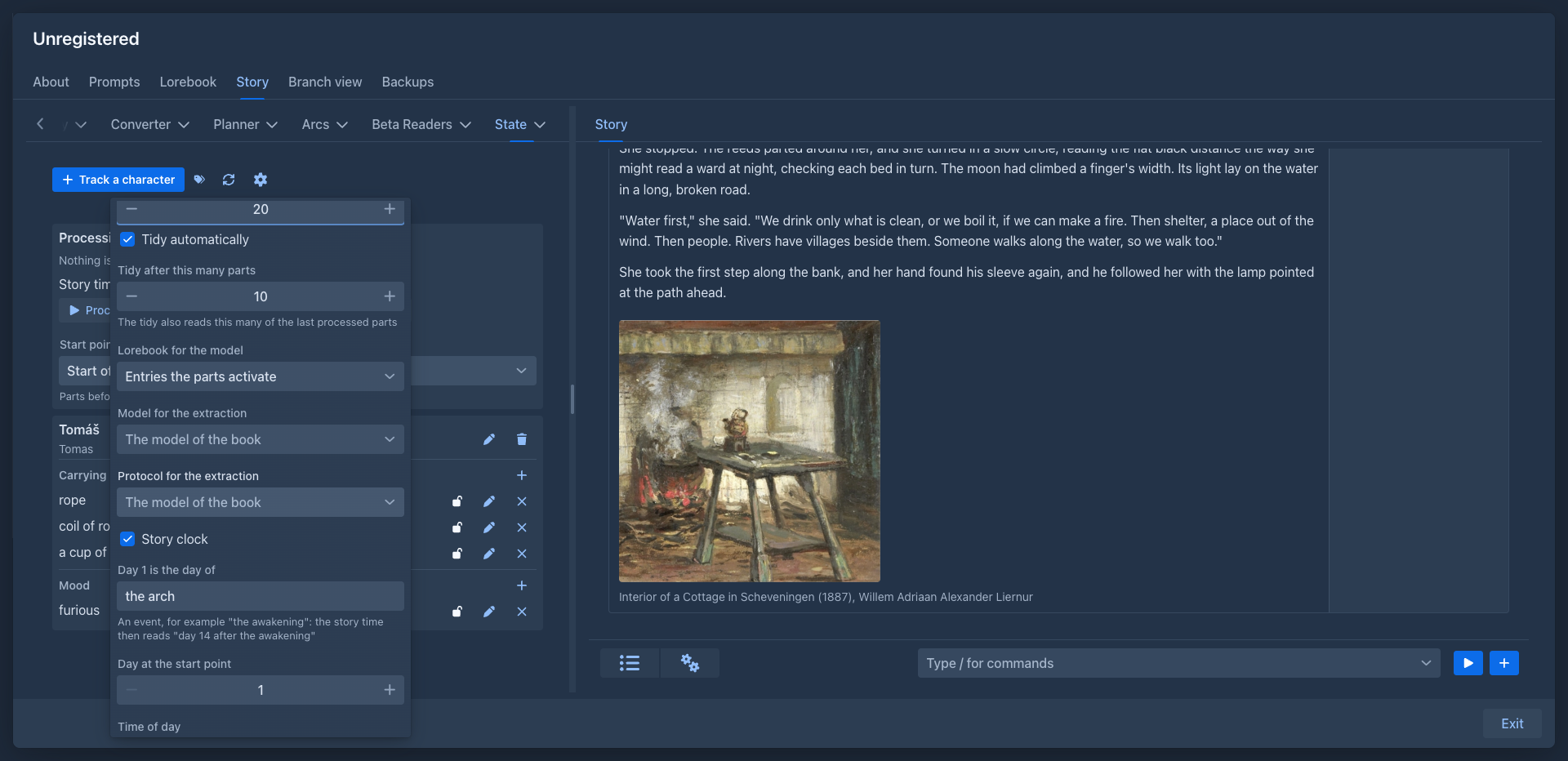
Day 1 is the day of names the event the days are counted from (the awakening): the time reads Day 14 after the awakening, evening. Day at the start point, Time of day and Date at the start point give the time before the first part that is read; with a date the clock also counts dates (20 April 1453).
-
The Processing panel shows the story time now, and every processed part shows the time after it. A stated day or date replaces an estimate before it.
-
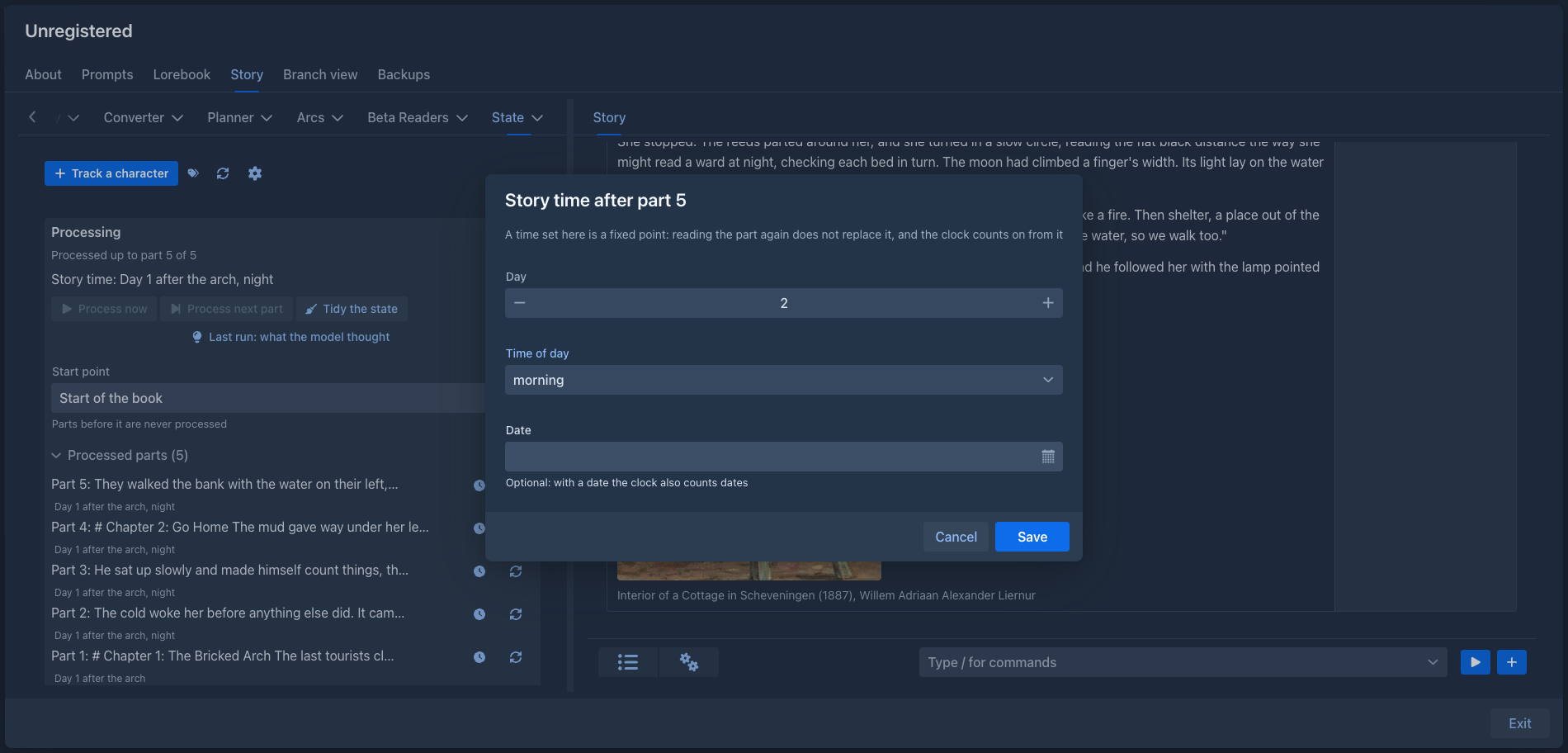
The clock button of a part (or of the story time line, for the last part) sets the time by hand: a fixed point (day, time of day, date) that reading the part again does not replace and that the clock counts on from. Remove the fixed point in the same dialog lets the model's reading count again.
-
In the review the time comes first, under Story time, with the quote of each part; untick what is wrong.
-
The prompt block starts with the time (Story time: day 14 after the awakening, evening.), also when no tracked character is in the scene.
-
A value remembers the story day it was set on (day 4). The tidy sees how long ago that was (a cup of tea, set 9 days ago) and drops what had time to fade.
-
With the clock on, every part is sent to the model, also those without a tracked character, because any part can move the time.
-
A reprocess, a regenerate or another branch takes back what was read from the parts that are gone, like the state; fixed points you set stay.
The log of automatic changes
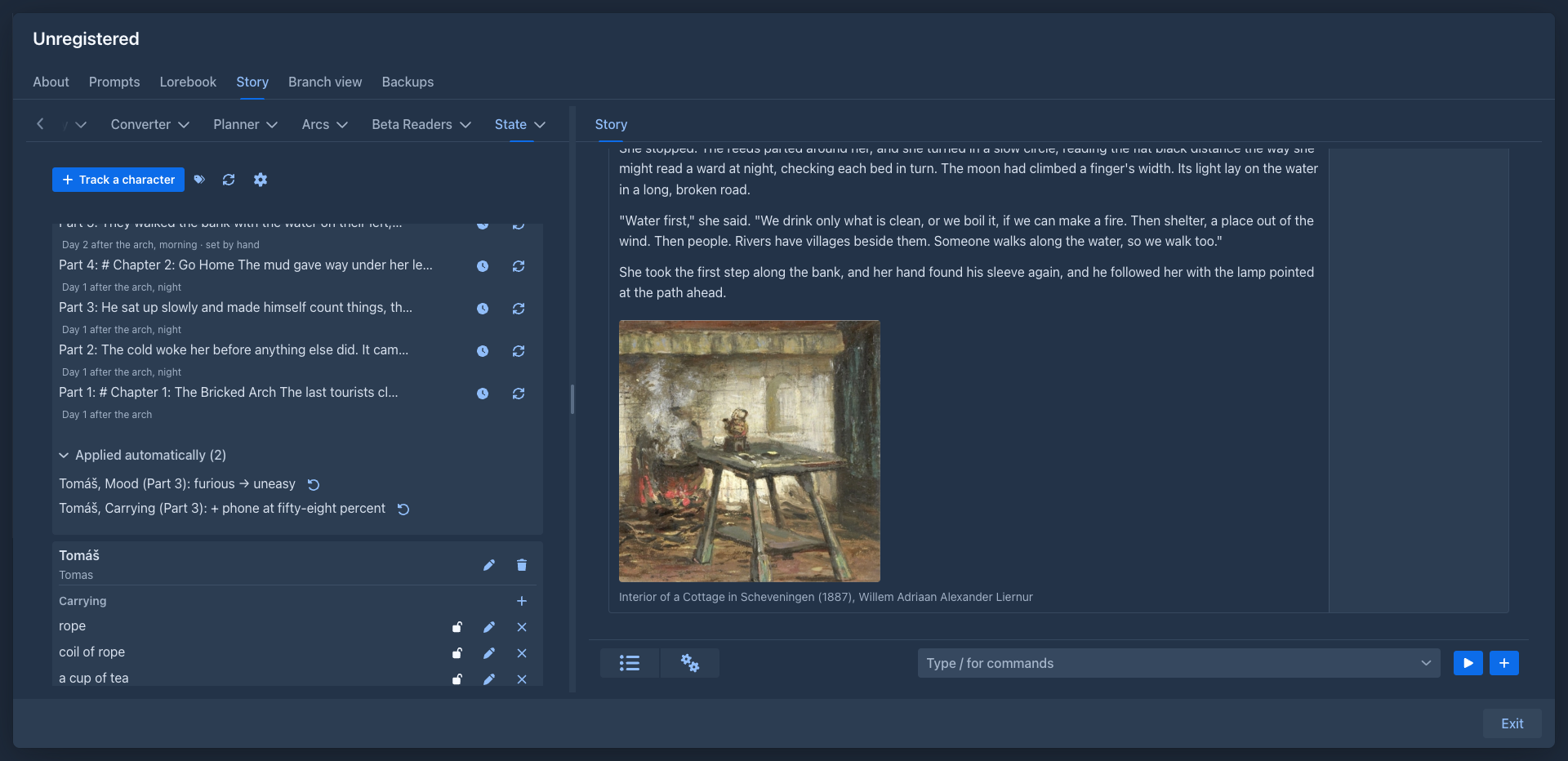
What is applied without a review (a run with Ask before applying off, the automatic tidy, a command without ask) is
written to Applied automatically in the Processing panel: who, which category, from which part (or tidied) and what
changed (+ lantern, − rope, short sword → axe). Nothing in the log is editable, but every row has a Revert button.
It works as if you had unticked the change in the review: the value the change made is deleted and the value it ended is current
again. A row is left alone when you changed the value by hand since (edited, removed, restored or deleted it, or gave a single
category another value). The log keeps the last 200 changes.
Returning to an earlier point
Before every run that applies changes (a run of the tab with or without a review, the automatic reading of new parts, the commands, a tidy) the tracker takes a checkpoint: the whole state of its characters as the run found it, with the story clock and the place it had read up to (Start of the book before the first run). Checkpoints in the Processing panel lists them, newest first: the part the tracker had read up to, the time, what kind of run came next and how many changes it applied. Only checkpoints whose part is on the active branch are listed.
Return to this point on a row undoes that run and everything after it: the values of the characters (current and past), the marks of the story clock, the processed parts and the log of automatic changes are those of the checkpoint, and the next run reads the parts after its part again, the ones of the undone run too. What the tracker had is kept as a checkpoint (before a return to a checkpoint), so you can go back to it. Your settings, the start point, the settings of the clock and the categories of the book stay as they are now (a category you deleted since comes back when the values of the checkpoint use it). It asks first, because everything read after the checkpoint is undone, the changes you made by hand since then too. Use it when a series of runs went wrong, or after you restored an older backup of the book and want the tracker to catch up from a point you trust.
The tracker keeps the last 20 checkpoints of a book. They are kept among your files (Resources, grouped by the book), not in the book, so book backups and copies do not include them.
Tidying the state
Some states fade without the story saying so: a mood, wet clothes, being out of breath, a cup held long after the meal. Tidy the state in the Processing panel asks the model about them. It reads the last processed parts with the current values of the tracked characters who are in those parts, and for each value it can:
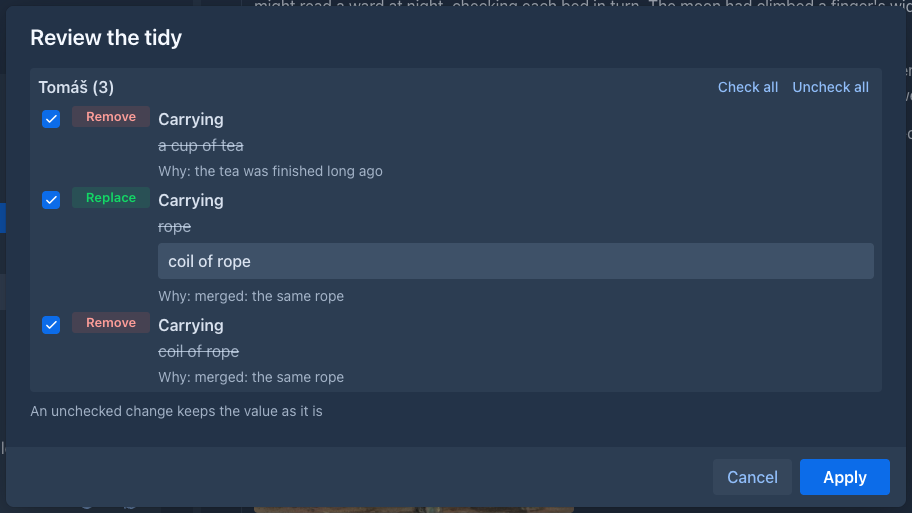
- drop it: it is no longer true or no longer worth keeping;
- update it: the parts show it moved on (the anger has turned into relief);
- merge list entries that are the same thing (rope and coil of rope).
Values it does not mention stay as they are, and so do locked values. Each change comes with a reason. A value the tidy writes (an update or a merge) is marked by the tidy with the last part it read, since the story did not state it; editing it makes it yours. You review it like any other run (or it is applied at once when Ask before applying is off). A value the tidy ends goes to the history as tidied, and Reprocess from here on the last part that was read before the tidy undoes it. Characters who are not in the last parts are left alone, so a rope carried by someone who has been absent for twenty chapters stays.
With Tidy automatically on (the default), the tidy also runs by itself at the end of a run that applies its changes without asking, once Tidy after this many parts parts (10 by default) have been read since the last tidy. A run you review never starts a tidy, so that a second review is not forced on you.
In the settings (the gear):
-
Process new parts automatically: when a part is final, the model reads it (at the latest before the next generation). With Ask before applying on, it is read only when you press Process now: a review is never forced on you in the middle of writing.
-
Ask before applying: off, the changes are applied at once and written to the log (see below).
-
Parts per run: how many parts one request reads.
-
Tidy automatically and Tidy after this many parts: see
Tidying the state . The tidy also reads that many of the last processed parts. -
Lorebook for the model: the entries the parts activate (default), the whole lorebook, or none.
-
Model for the extraction and Protocol for the extraction: empty means the model of the book.
-
Use these settings for new books saves the settings of this book (the model and the protocol included, the separators stay with the book) as the ones a book starts with where the State Tracker was never used. Forget the settings for new books goes back to the built-in settings. Books that already use the tracker keep their own settings.
Prompts
The system message of the reading (State extraction prompt) and the one of the tidy (State tidy prompt) are inherited settings: a book uses its own, else the nearest folder above it that sets one, else yours, else the built-in text in your prompt language (the English one was tested against a real model).
Set them in the Prompts tab of the book, under Extension Settings, in the dialog of a folder, or for all your books in
Settings → Extension Settings → State Tracker (empty shows the built-in text in grey). Keep the JSON answer format of the
built-in text: the plugin reads the answer by it. The rules of the
In the prompt
The gear button holds the settings of the book:
-
In prompt inserts the state of the tracked characters of the scene into the prompt of every generation (the gear turns green while it is on).
-
Depth and Role say where it goes, as for the Author's Note: Depth is the number of messages after it (0 after the instructions of the turn, 1 right before them).
-
Name separators say how the Present Characters field is split (by default
,;/|and new lines). Notes in brackets are ignored, soMara (asleep), Fiorafinds both.
The prompt gets the characters of the scene that have something to say:
The current state of the characters of this scene. Keep to it; it changes only when the story changes it:

Fiora:
- Wearing: torn green cloak, leather boots
- Weapon at hand: none
- Carrying: rope; lantern
You can put the same text anywhere in a template with the macro
{{command::state-tracker-block::{{presentCharacters}}}} (any list of names works as the argument). The macro prints the
state whether or not In prompt is on, so switch that off when you use the macro, or the model gets the state twice.
Commands
For the command bar and for agents: