Database backups
A database backup is a complete copy of the Marginalia database: all users with all their books, lorebooks, settings and extension data. Use it to protect the installation against mistakes and failures, and to move it to another computer. To back up a single book, users have book backups.
Creating a backup
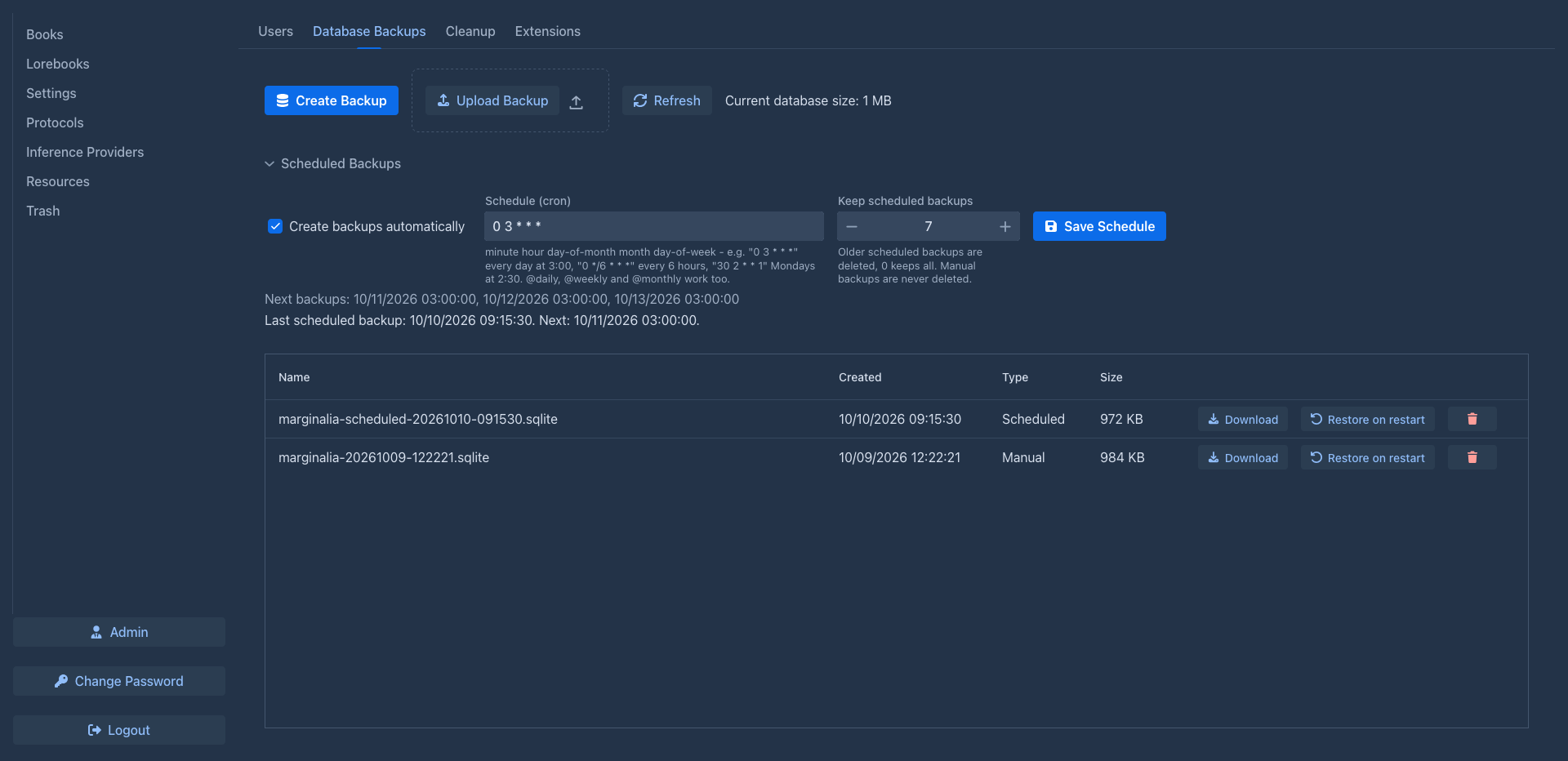
Click Create Backup on the Database Backups tab. The copy is made while Marginalia runs, consistent even when people are writing. It appears in the list with its Name, Created date, Type (Manual or Scheduled) and Size. The toolbar shows the current size of the database.
Each backup has:
Upload Backup adds a backup file (.sqlite or .db) to the list, for example one downloaded from another
installation. The file is checked first and refused with The database can't be restored: ... and the reason when it
is not a SQLite database, is damaged, is not a Marginalia database (another application's database), or comes from a
newer Marginalia version than the one running.
Backups contain secrets
A database backup contains everything, including the password hashes of all users and their API keys. The API keys
are encrypted with the secret.key file in the data folder, which is not part of the
backup - but anyone with both the backup and secret.key can read them. Keep downloaded backups as safe as the server
itself.
The files are stored in the db-backups folder of the data folder. Copies Marginalia
makes itself - pre-restore-... before a pre-migration-... before an
Uploaded files (the pictures of the parts) are not part of a database backup
either. The database only knows them as entries of the Resources tab; the files are in the
data/<login>/images folder of the data folder. That is fine: after a restore the entries are the ones from the time of
the backup and the pictures they use are still in the folder. Files of pictures that were added after the backup are
just left over (nothing refers to them) and take disk space. To keep the pictures safe, include the whole data folder
in your own backups, or pack them into a book backup.
When you restore a backup on another installation, copy secret.key from the original installation as well
(with Marginalia stopped), otherwise the saved API keys can't be decrypted and every user has to enter them again.
Scheduled backups
The Scheduled Backups section creates backups automatically:
Click Save Schedule to apply it. The status line shows when the last scheduled backup was made and when the next one is due.
When Marginalia wasn't running at a scheduled time - typical for the desktop app, which runs only while you write - it makes the missed backup about 30 seconds after the next start.
Schedule syntax
The schedule is a cron expression with five fields, minute hour day-of-month month day-of-week:
Times are in the time zone of the server (in Docker, set it with the TZ environment variable).
To turn scheduled backups off, uncheck Create backups automatically and click Save Schedule. The expression is kept, so you can turn the backups on again later. It is still checked - an invalid expression is never saved - but while the backups are off, the field may also be empty.
Restoring
A database can't be replaced while Marginalia uses it, so a restore happens on the next start:
-
Click Restore on restart next to the backup and confirm. The tab shows Database restore is scheduled. Restart the application to apply it. - Cancel Restore undoes it.
-
Restart Marginalia: quit and start the desktop app, or
docker compose restarton the server.
On the start, the current database is moved to db-backups/pre-restore-<time>-marginalia.sqlite - it appears in the
list, so a restore can be undone by restoring that file - and the backup takes its place. A backup from an older
Marginalia version is upgraded automatically.
The backup is checked again before it is swapped in (the same checks as for Upload Backup, also Restore on restart
refuses a backup that fails them). If it fails the check, or upgrading it fails, Marginalia keeps (or puts back) the
current database and starts normally; the refused file is moved to db-backups/rejected-restore-<time>-marginalia.sqlite
and the log says why.
Everything after the backup is lost: books, parts and settings created since. Users who are logged in have to log in again if their account changed.
Copy before an upgrade
When a new version of Marginalia is going to change the structure of an existing database, it first saves a copy as
db-backups/pre-migration-<time>-V<version>-marginalia.sqlite, where the version is the one the database was at. The
copy is in the list of backups, so an upgrade can be undone by installing the old version of Marginalia and
A migration that fails halfway is rolled back by itself and Marginalia does not start; the copy is for an upgrade that went through but did something you don't want.
Moving to another computer
- Create a backup and Download it.
- Install Marginalia on the new computer, create a temporary administrator on the first start.
- Upload Backup, Restore on restart, restart.
- Log in with the accounts from the backup.
Copy the data folder (book backups and the pictures of the parts) and extensions folder from the old data folder as
well. Or simply stop Marginalia and copy the whole .marginalia folder.