Permissions

A permission lets one user do something that is not for everybody. Administrators give permissions to users one by one; a user who has none can do everything else in Marginalia as usual (write books, build lorebooks, use the models that administrators share).

Permission What it allows Settings
Create own models Adding inference providers: without it the user can only use the providers the administrators share, the providers they already have keep working and can still be edited.  
Help assistant Asking the help assistant, the chat that answers from the manual. Apply limits and Allow navigating the interface, see Settings of a permission.
Agents (Experimental, see Agents) The Agents tab: creating agents, cloning them and running them on a book. Most agents, Concurrent runs, Requests to the model at once, Token budget of a run and the quotas of copies and files, see Settings of a permission.
Version history The most versions of a part the history of the user's books keeps. Every user has it with 50 (a user without the row too); a permission that is not granted means no history for that user. Versions kept per part, a ceiling the folders, the books and the user cannot raise. An empty number sets no limit here. A permission you add starts at 50.
Notifications The message to a URL the server sends when an agent needs the user and no screen is open. The server calls an address the user typed, so it is a permission of its own: without it the fields are not in the user's settings and nothing is sent. Allow addresses on this machine and in private networks, see Settings of a permission.

Administrators always have every permission, they need none, so there is nothing to give them (the buttons and sections of an administrator never depend on a permission). New users have no permission: give them what they need right after you add them.

Giving and taking permissions

The key button in Admin → Users, in the row of the user, opens the permissions of that user:
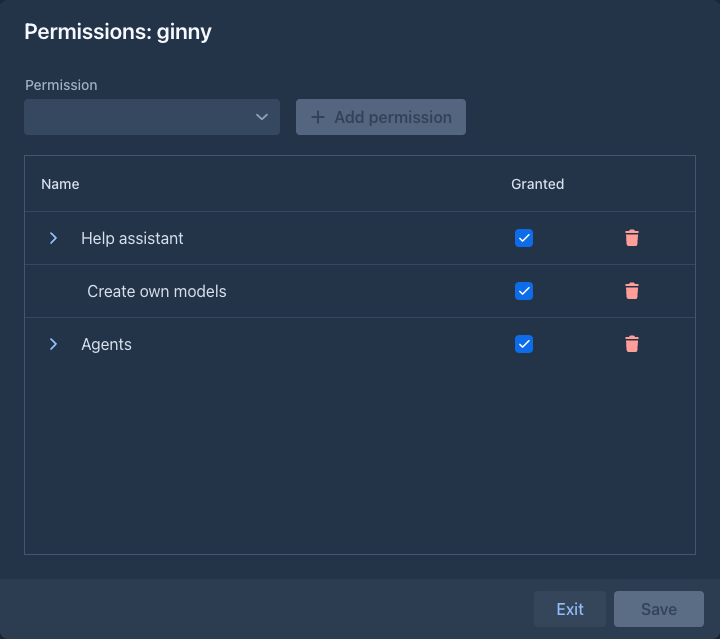
The permissions of a user

The window is a table of the permissions the user has, with three columns:

Column  
Name The permission. A permission that has settings has an arrow in front of its name, see Settings of a permission.
Granted Whether the permission works. A permission that is not granted is the same as none, but it is kept with its settings, so you can switch it off for a while and on again.
The trash button Deletes the permission (and its settings) for good.

To give a permission, click Add permission above the table and choose one of the permissions the user has none of; it is added to the table, granted. Nothing is stored until you click Save:
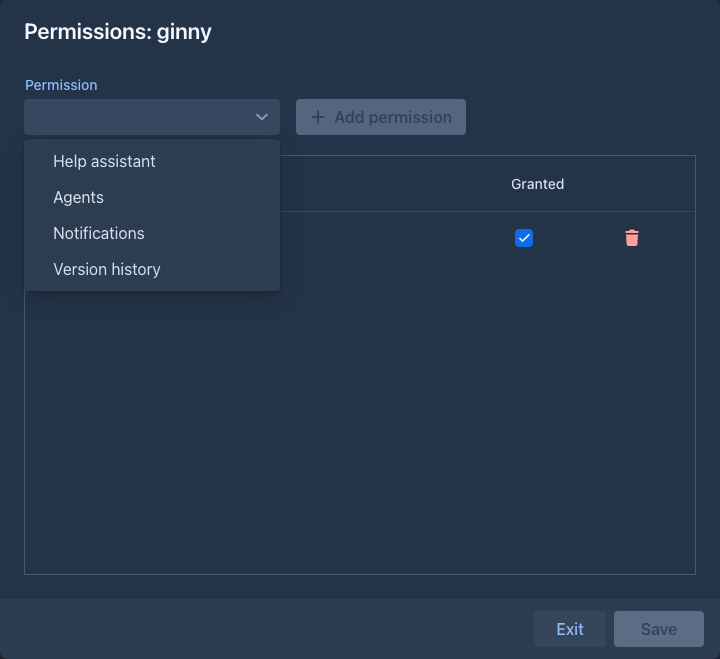
Choosing a permission to add
  • Save is off while there is nothing to save.

  • Exit closes the window; when there are unsaved changes it asks first, so a change is never thrown away by accident.

  • A permission you delete stays in the table until you save, and is deleted for good when you do. Before that, put it back by closing the window with Exit without saving.

After saving, the page of the user is reloaded when they are logged in, so the buttons and sections that depend on the permissions appear or go away at once. Your own page is not reloaded, even when you change your own permissions.

Settings of a permission

Some permissions have settings that belong to the user, not to the whole installation. The row of such a permission starts with an arrow: click it to unfold the settings (they are folded when the window opens, and a permission you just added is unfolded), click it again to fold them. Folding is only a way to keep a long list short; it changes nothing and does not count as an unsaved change.
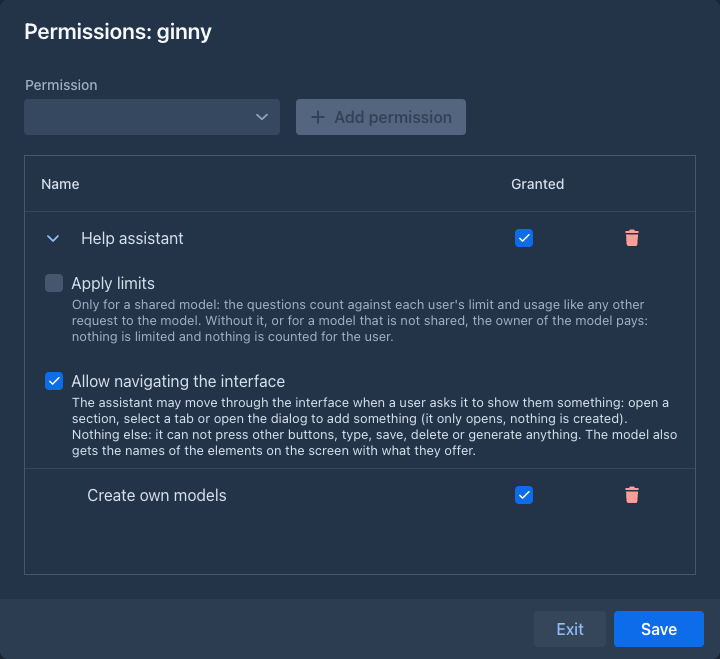
The settings of the Help assistant permission

Help assistant, Agents and Notifications have them. The ones of the help assistant:

Setting  
Apply limits For a shared model, whether the questions of the user count against their limit and usage like any other request, see Who pays. Off by default.
Allow navigating the interface Lets the assistant open a section, select a tab or open the dialog to add something when the user asks it to show them the way, see Showing the way. Off by default.

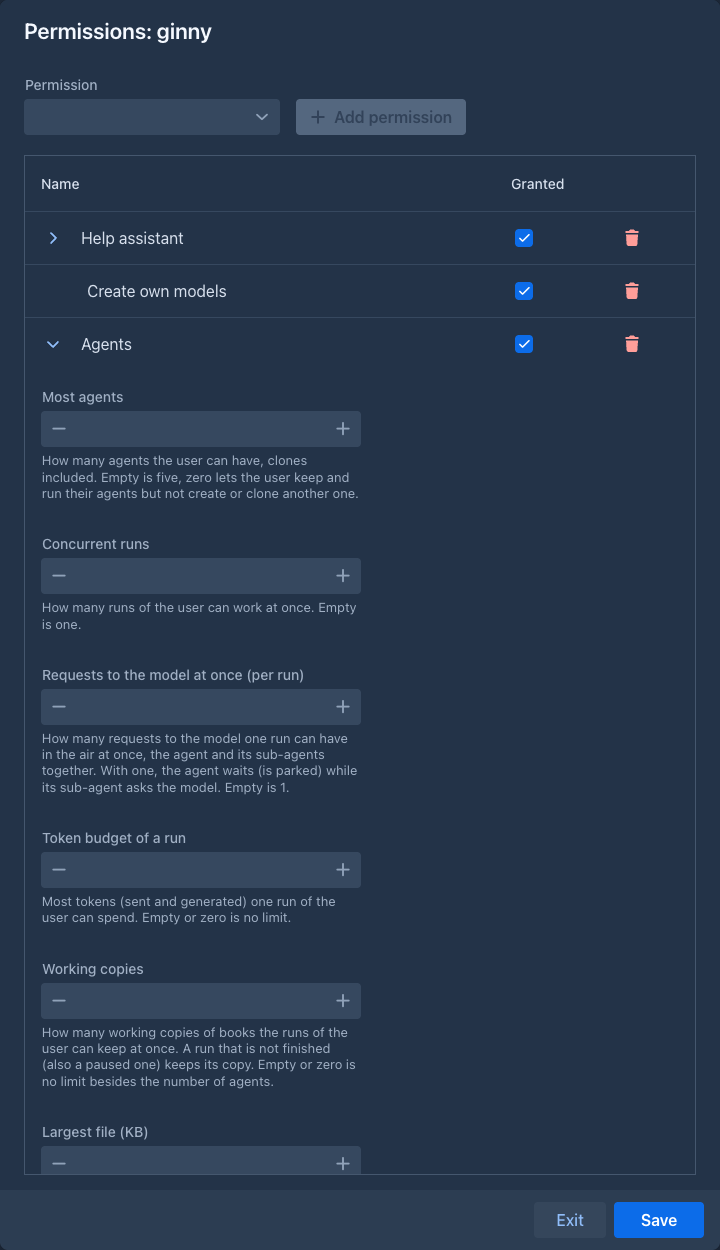
The ones of the agents; an empty field is the default:
Setting  
Most agents How many agents the user can have, the clones of an agent included. Five when empty. Zero lets the user keep and run their agents, but not create or clone another one. A deleted agent frees its place.
Concurrent runs How many runs of the user can work at the same time. One when empty.
Requests to the model at once (per run) How many requests to the model one run can have in the air at the same time, the agent and its sub-agents together. One when empty: while a sub-agent asks the model the agent waits, and the other way round. More lets sub-agents work in parallel with the agent (the model of the agent may have its own cap of requests too, which applies as well).
Token budget of a run The most tokens (sent and generated) one run of the user can spend. Empty or zero is no limit.
Working copies How many working copies of books the runs of the user keep at the same time. A run that is not finished keeps its copy, a paused one too, and gives it back when it is finished, stopped or deleted. Empty or zero is no limit besides the number of agents.
Largest file (KB) The largest file an agent of the user can write to its workspace. 1024 (1 MB) when empty.
Workspace size (MB) How much all the files in the workspace of one agent of the user can take. 20 when empty.
Files in a workspace How many files the workspace of one agent of the user can hold, folders are free. 500 when empty.
Checkpoints of a run (MB) How much all the checkpoints of one run (restore points of the working copy and its workspace) can take; part of it is kept for the automatic ones. 100 when empty.
The settings of the Agents permission

The one of the notifications:

Setting  
Allow addresses on this machine and in private networks A sub-permission: the box can be ticked only while Notifications is granted (it is greyed out otherwise, and taking the permission away clears it). Without it only addresses on the internet are called: not localhost, not a private network (10.x.x.x, 172.16-31.x.x, 192.168.x.x), not a link-local or shared address (169.254.x.x, which is where cloud hosts keep their metadata service, 100.64-127.x.x), not the unique local addresses of IPv6. Tick it for a user whose ntfy or Gotify runs on the same machine or on your own network. Off by default. A name is checked by the addresses it resolves to, so a name that points to a private address is refused too, and so is one that cannot be found.

Administrators need neither the permission nor the sub-permission: they get the messages and may use local addresses. On a server shared with people you do not fully trust, leave the sub-permission off: the server would otherwise make requests to whatever the user types, inside your network.

When permissions were introduced

Before the permissions, Users can create their own models and the Enabled switch of the help assistant (with Apply limits and Allow navigating the interface) were settings of the whole installation. Marginalia moved them into permissions when it was updated: every user that existed then got Create own models if everybody could create models (which was the default), and Help assistant with the same two settings if the assistant was enabled. Nothing changes for them until you change it; users you add from now on start with no permission.