Book Description Generator
Lets the model write the name and the description of a book from its story. You choose which part of the story it reads, and copy what it wrote into the book.
Opening it
With the extension installed, the About tab of the book window has a Generate name and description button at the end. It works in the phone layout too. The dialog has the options on the left and the result on the right.
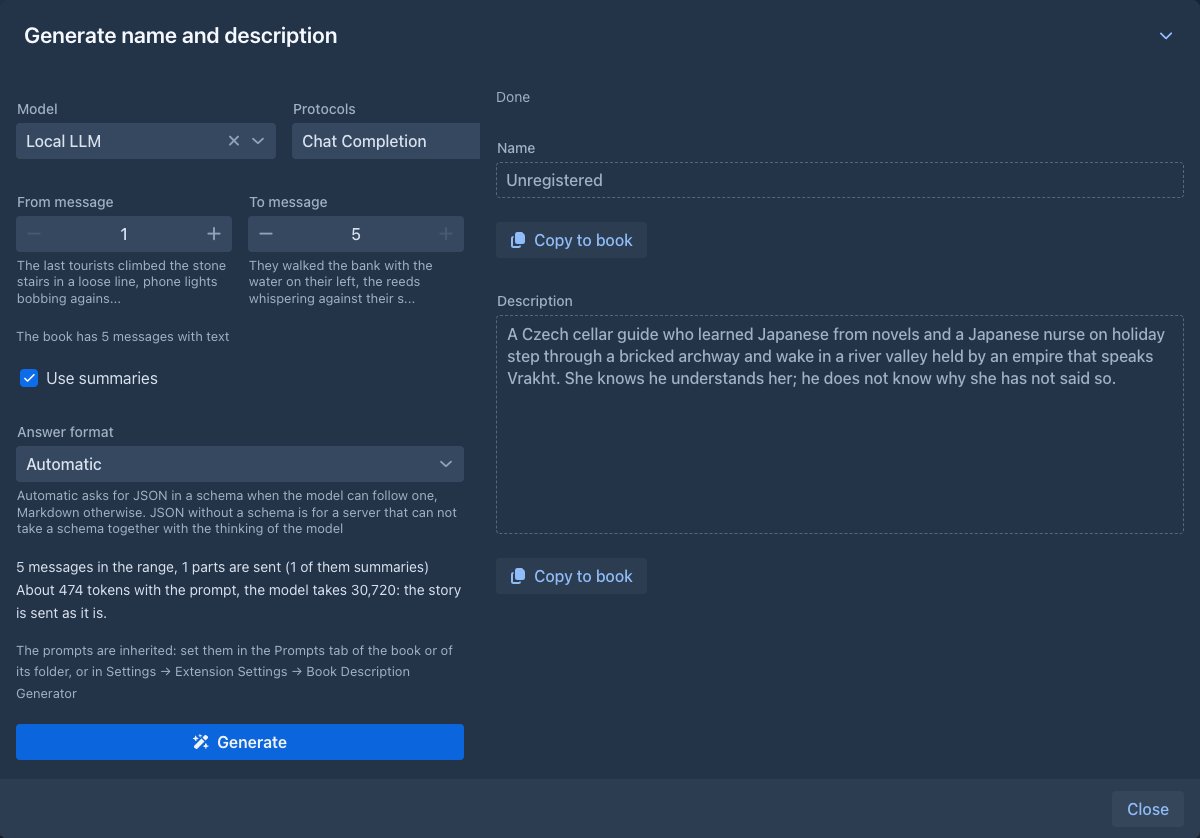
Under the options a counter tells how many tokens the range is with the prompt, how many the model takes, and whether the story is sent as it is or has to be made into notes first.
Generate starts the model, the same button stops it. The name and the description appear on the right, each with its own Copy to book button: it puts the text into the field of the About tab and saves the book at once (the title of the book window changes too). If the answer can not be read as a name and a description, the dialog shows the text the model wrote.
A story that is too long
When the range is more than the model takes, the story is divided into parts that fit, in order, and the model writes notes on each of them (they appear under Notes as they come). The description is then written from the notes instead of the story. Notes that are still too long are divided and noted again, up to four rounds. A single message larger than a part is cut at a paragraph, a line or a sentence.
If neither the model nor the protocol has a context size set, the plugin can not tell what is too long and always sends the story as it is.
Prompts
There are two prompts, the one that writes the name and the description, and the one that writes the notes of a part of a long story. They are inherited settings: a book uses its own, else the nearest folder above it that sets one, else yours, else the built-in text.
Set them in the Prompts tab of the book, under Extension Settings, in the dialog of a folder, or for all your books in Settings → Extension Settings → Book Description Generator. The instructions that tell the model how to write the answer (JSON or Markdown) are added after the description prompt by the extension, so your prompt only has to say what to write.