Account & settings
Everything you create in Marginalia belongs to your account: books, lorebooks, tags, inference providers, protocols and settings. Other users don't see them (except books you publish), and you don't see theirs.
Your account
The buttons at the bottom of the workspace:
Changing the password
Change Password opens a dialog with your Username, Full Name, Current Password, Password and Repeat password:
- enter your current password for every change (leave it empty if your account has no password);
- to change the password, enter the new one in both password fields;
- leave both password fields empty to change only the name and keep the password;
- the user name must not be used by another account.
Click OK to save. With a wrong current password nothing is saved.
Changing the password ends all saved logins (Save login), on every device including this one: they have to log in again with the new password. If a device was lost or your password leaked, changing the password logs that device out. Sessions that are open right now (a browser tab still showing the workspace) stay logged in until they log out or their session expires.
Language
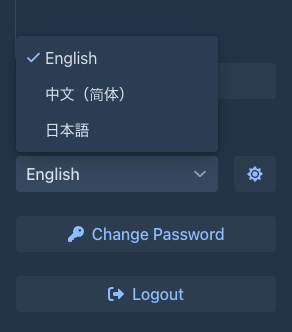
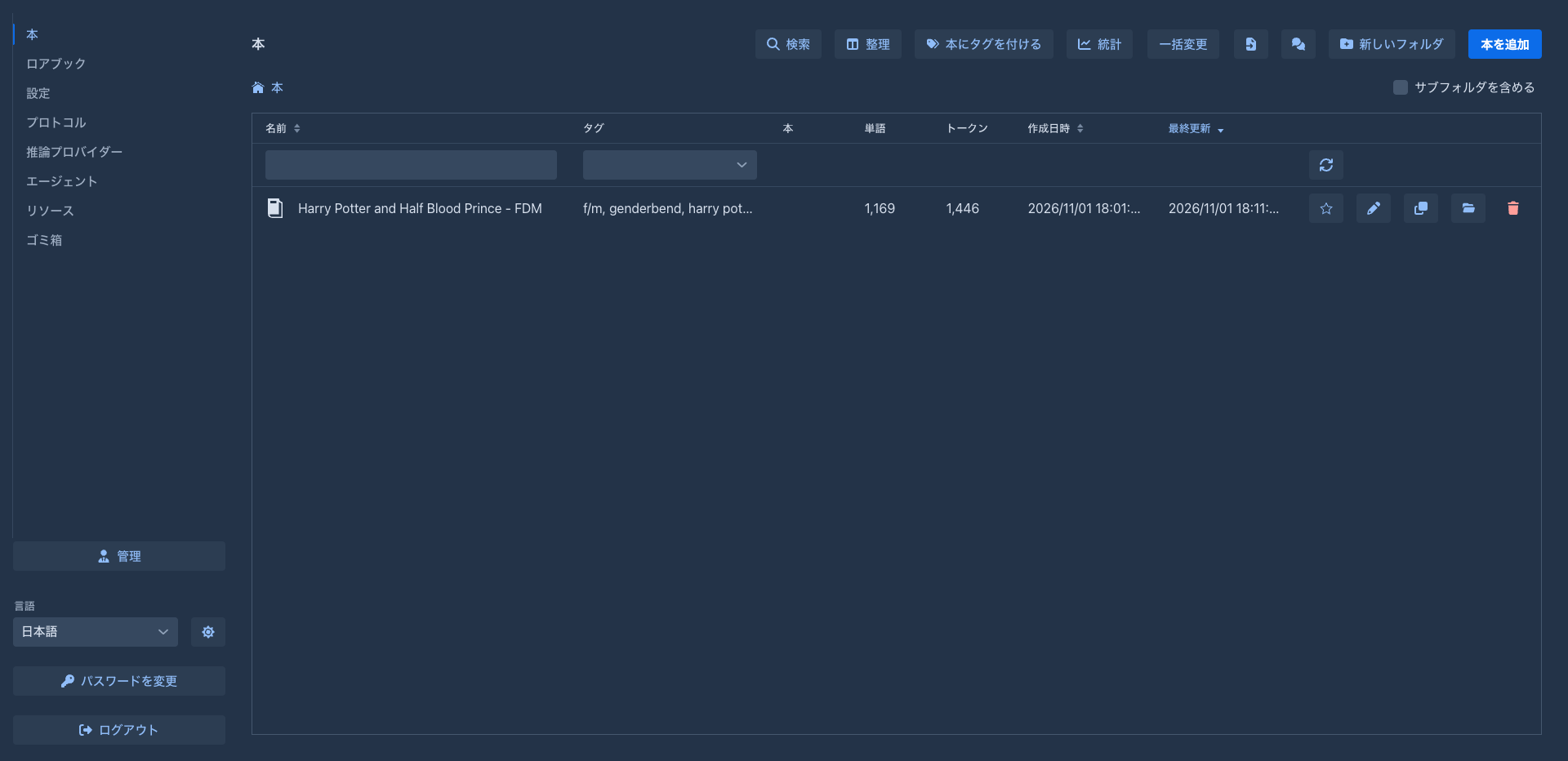
The Language selector above the buttons switches the user interface to another language. The choice is saved in your account: the page reloads with the new language, and so does every other page you have open (on another device too), and it is used again the next time you log in. The login screen itself is always in the default language.
The list contains only the languages that are installed. English and Japanese come with Marginalia; an administrator can add more by loading an extension, for example Chinese localization. Texts a language doesn't translate are shown in English. The bundled extensions bring their own texts in Japanese and Chinese (the Chinese ones show when the Chinese localization is loaded). Dates are written the way that language does. Your books and their texts are not translated, only the interface.
Theme
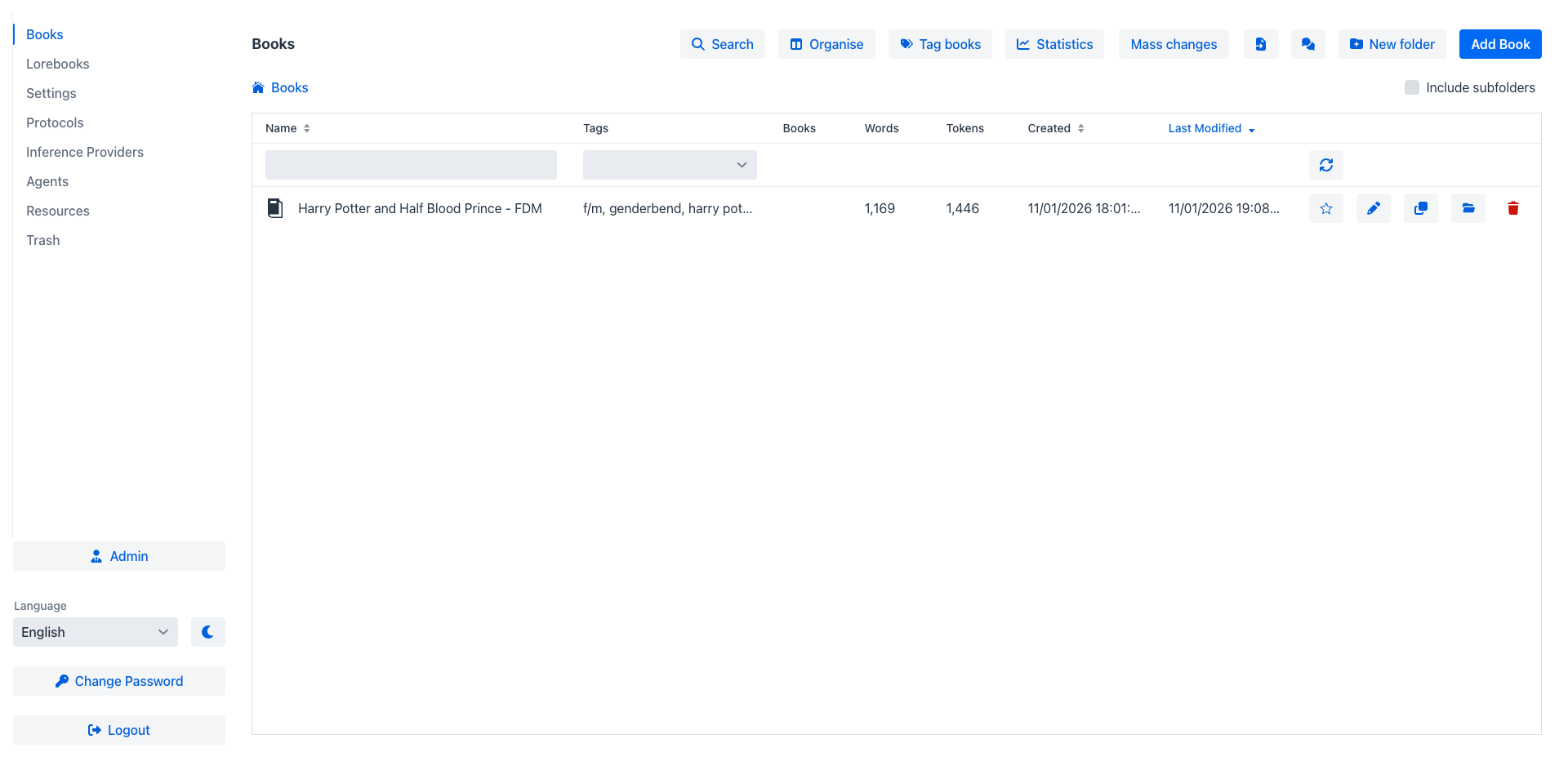
The button next to the Language selector switches the user interface between the dark theme (the default) and the light one. The choice is saved in your account and used again the next time you log in, on any device; a page that is already open in another tab changes when it is reloaded. Charts and the relationship map take the colors of the theme when they are opened.
Logging in
Save login on the login screen keeps you logged in on this device for 30 days (it needs HTTPS on a server, see Server (Docker)). Logout ends it.
An account can have an empty password; you then log in with the user name only. If an administrator cleared your forgotten password, log in this way and set a new password with Change Password right away. That is handy for the desktop app on your own computer, but never do it on a server others can reach.
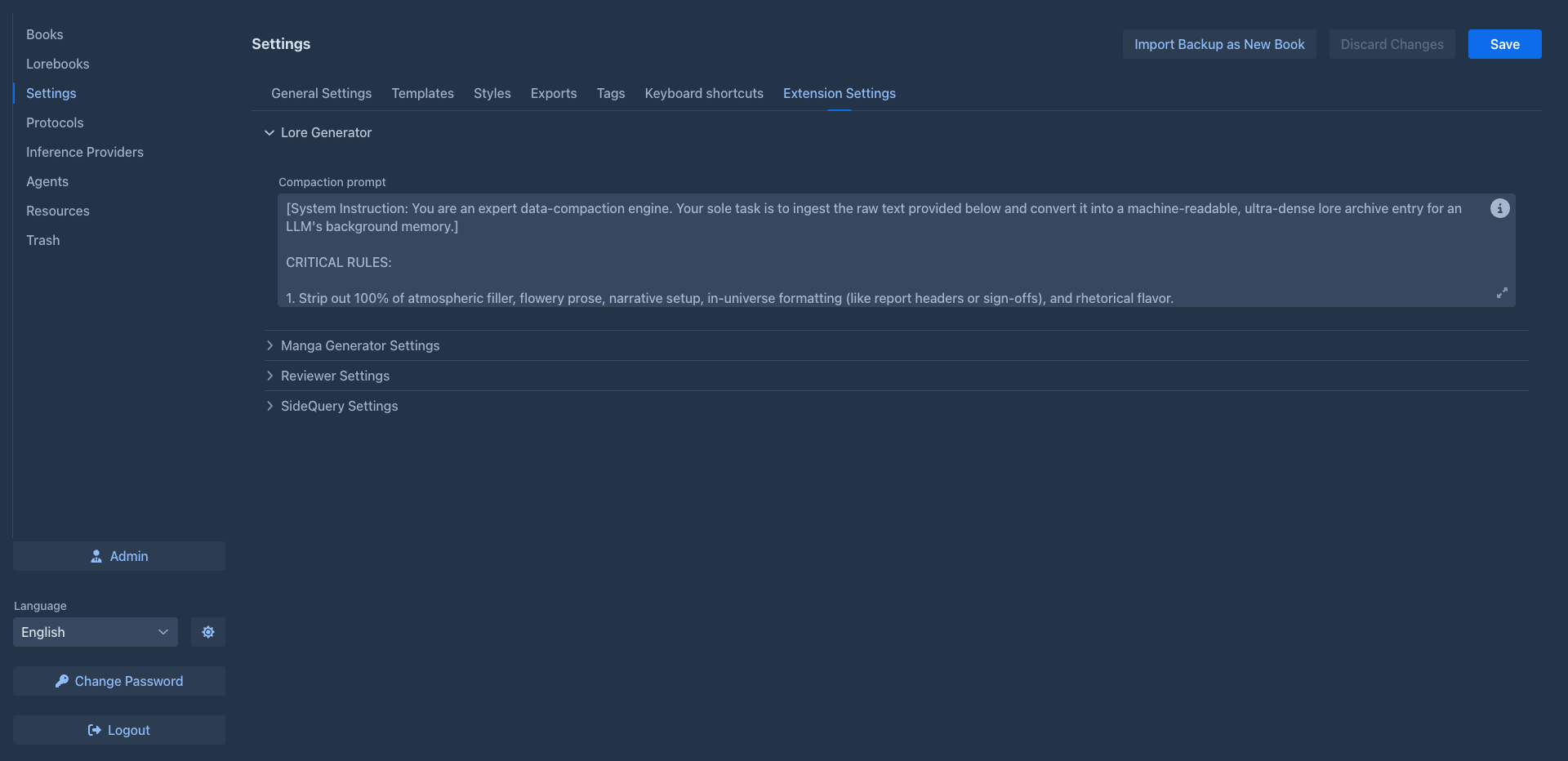
Settings
The Settings tab holds your defaults for all your books.
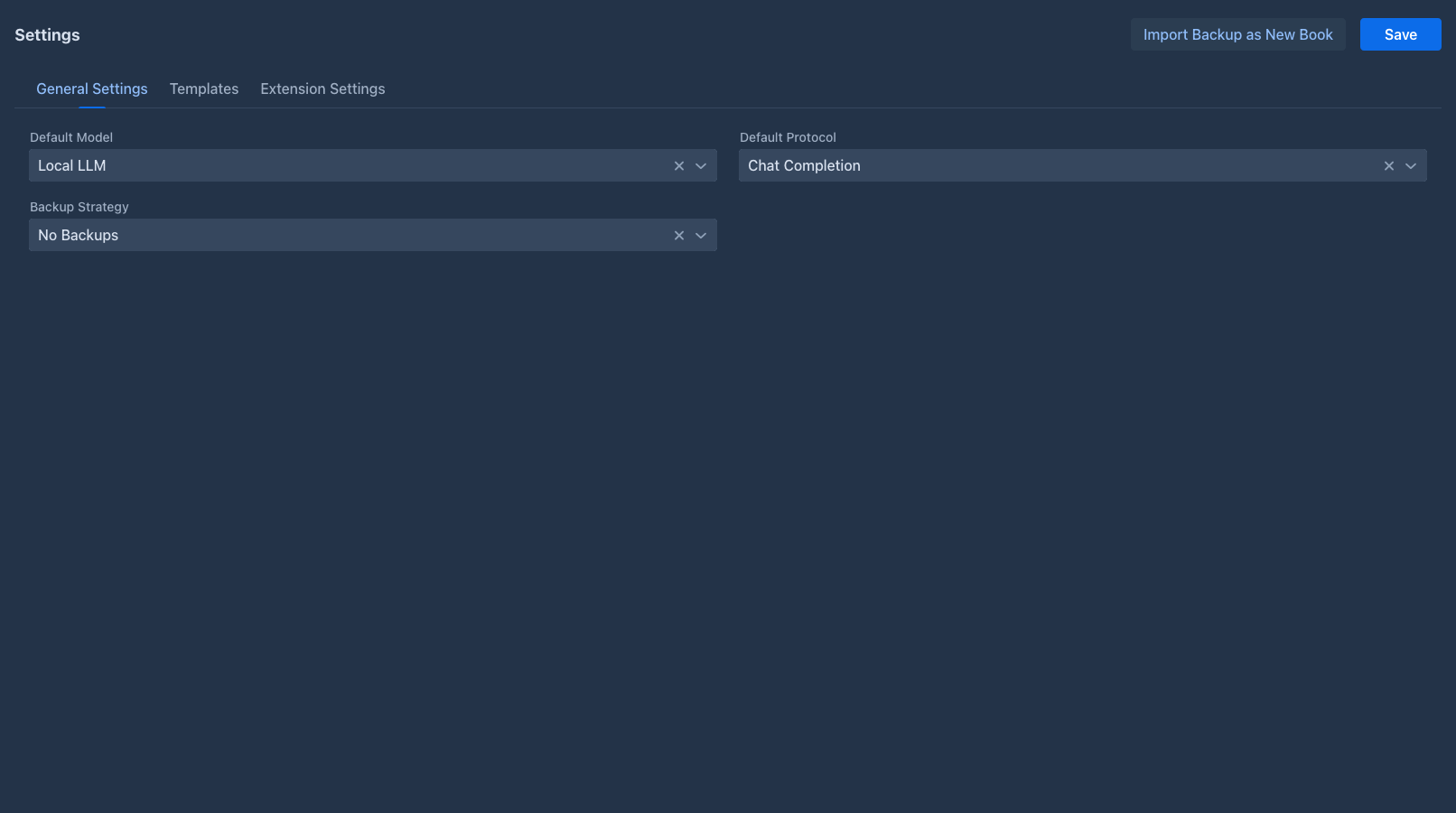
At the top are three buttons:
-
Import Backup as New Book - creates a book from a backup file, see Book backups;
-
Discard Changes - throws away the unsaved changes and loads the saved settings again;
-
Save - saves the settings.
Unsaved changes
Settings are not saved automatically. As soon as you change a field (extension settings included), Unsaved changes appears at the top and the other tabs, Admin and Logout are locked. Click Save or Discard Changes to unlock them.
General Settings
Default Model and Default Protocol are used only when a book is created; changing them doesn't change existing books. The Lore Generator extension has no book and generates with them. The backup strategy applies to all books without a Per manuscript override, from their next generated part.
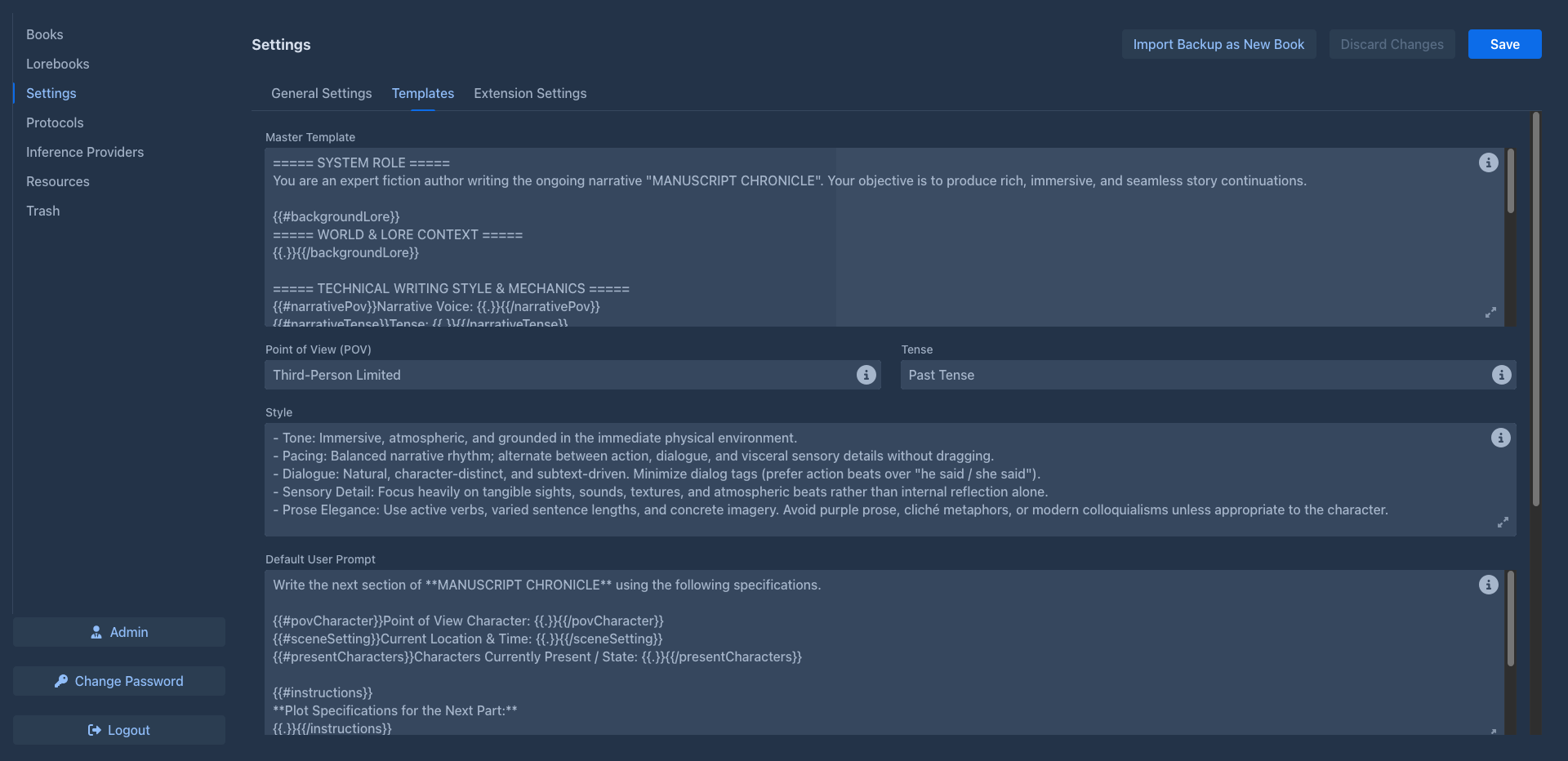
Templates
The defaults for the book prompts:
Further down, for a user who may use agents, are the prompts of the agents:
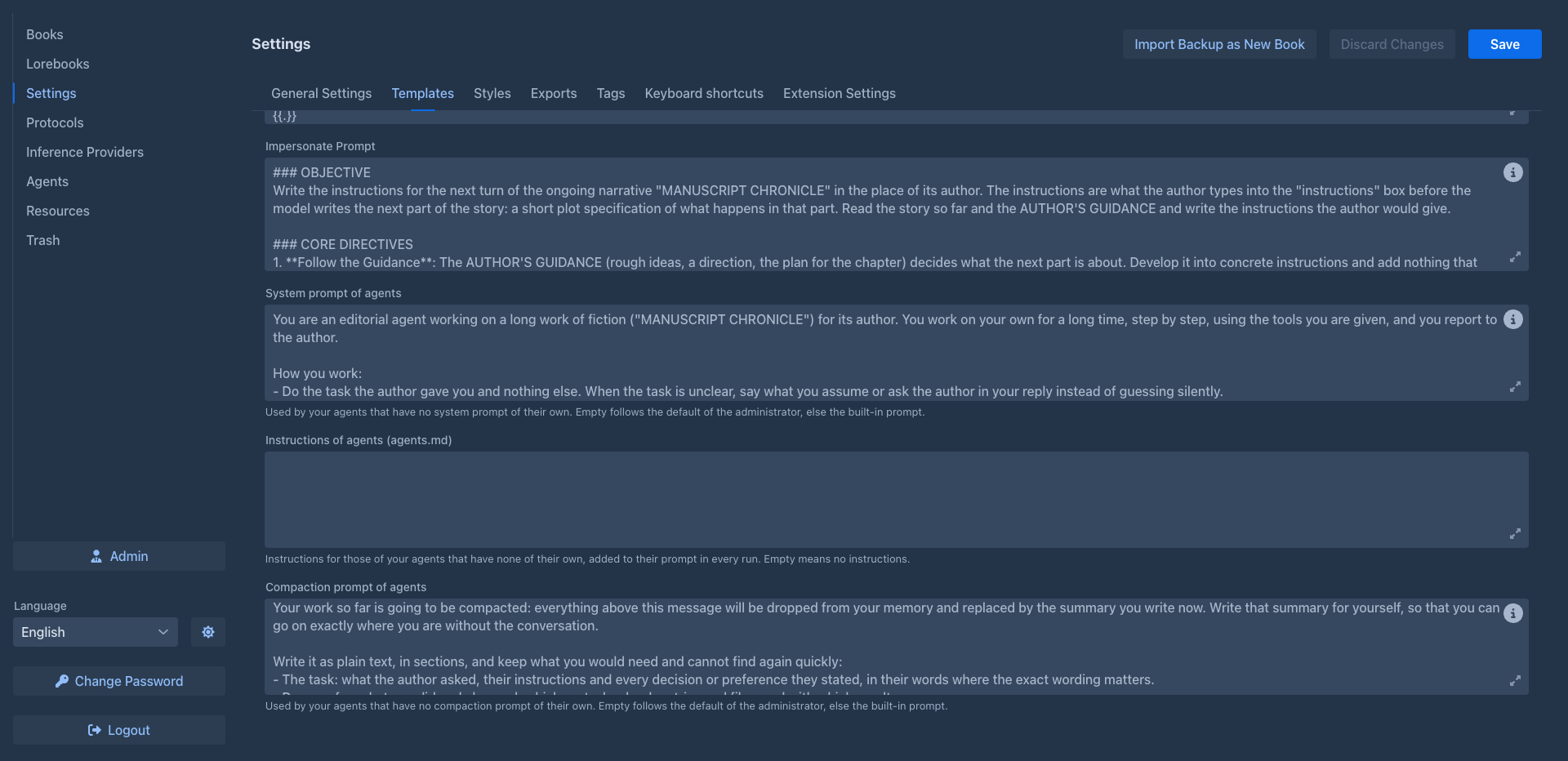
Each field shows the built-in default in grey while it is empty, and has the hints popover with Insert Default Template and the available variables and macros.
These defaults apply to every book whose own field is empty, immediately - not only to new books. A book that sets its own value on its Prompts tab keeps it. So:
- set what all your books share here;
- set what is special to one book on its Prompts tab;
- clear a book's field to bring it back to the default from Settings.
Styles
The text styles of your books: how the text of the parts looks in the story and in the reader. The tab lists the Normal and Book styles, which the application brings and which can not be changed (they are marked built in), and your own. Select a style to edit it on the right; the buttons under the list:
-
Duplicate - makes a style of your own from the selected one (also from a built in one: this is how you start), named ... (copy), which you can then rename and change;
-
Delete - deletes a style of yours; a built in style can not be deleted;
-
Set as default - makes the style the one the books use unless they choose another in the story's settings menu. The default style is marked default in the list.
-
Export and Import - save the selected style as a
.style.jsonfile, and add the styles of such a file to your own (not stored until you save the settings). See Share a style.
The styling guide goes through every option and has an example style to download.
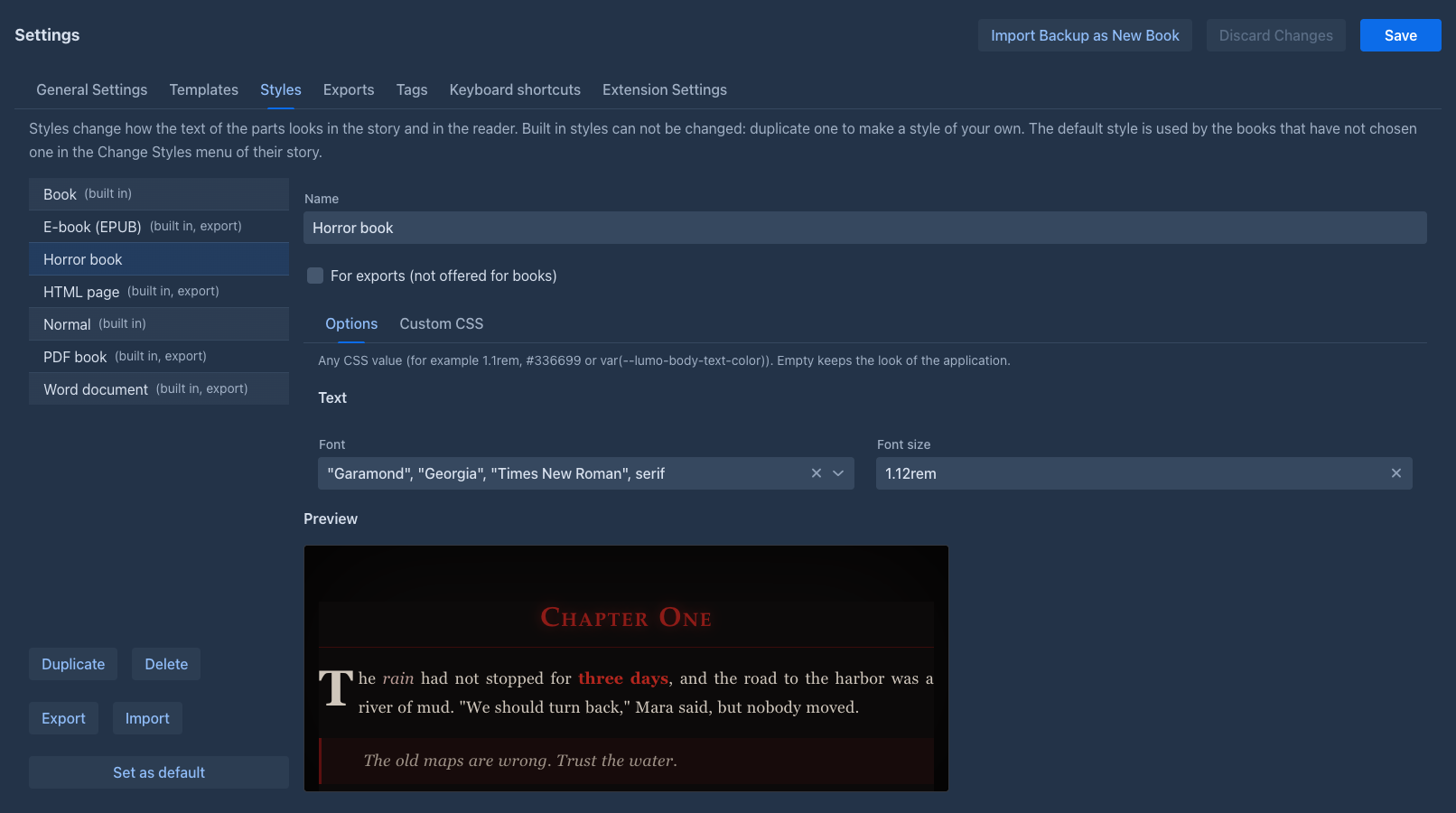
For a style of your own the form on the right has a Name, the box For exports (not offered for books) and two tabs. A style is either for books or for exports: a style for exports is offered in the export dialog (the application brings four, the looks of the HTML, EPUB, PDF and Word exports) and can not be the default style of the books, and a style for books is not offered in the export dialog. The list marks them (export).
-
Options - in groups: Text (font, size, line height, letter and word spacing, color, alignment, hyphenation, the space between paragraphs, the first line indent of paragraphs and a drop cap after headings), Page (the width of the text column, centered, and the background color, which fills the whole area behind the text), Emphasis, links and code (the colors of italic and bold text and of links, the font of code), Quotes, Headings (font, size of the first level, color, alignment, small capitals) and the symbol and color of the Scene break (
---). A box is any CSS value (1.1rem,#336699,var(--lumo-body-text-color)); an empty box keeps the look of the application. The font boxes offer common font stacks, and take your own. -
Custom CSS - CSS of your own, added after the options and applied inside the style, so a rule you write is only for the text with this style:
.chat-message-markdown p { text-indent: 1.5em !important; }indents paragraphs, plain declarations (font-size: 1.2rem;) apply to the whole text. Below it, Generated CSS shows the stylesheet the options make (read only). The braces{ }must match, or the style is not saved.
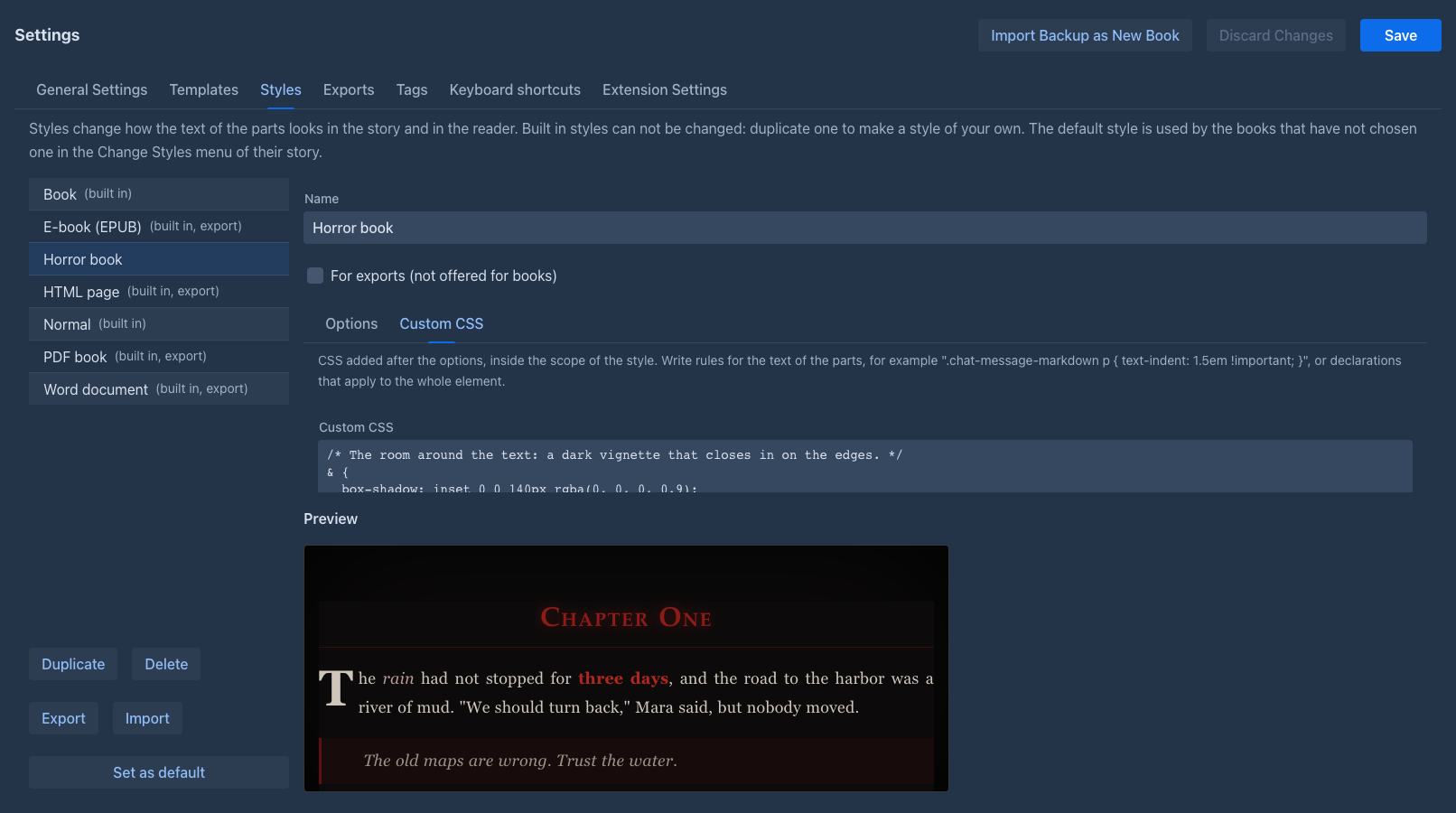
Under the form the Preview shows a sample text in the style, and follows every change as you type.
Like the other tabs, the Styles tab is saved with the Save of the settings, and Discard Changes throws its changes away too: duplicating, editing, deleting and setting the default only change the working copy, and Unsaved changes (and the lock) appears as soon as you do any of them. A style with no name, or custom CSS whose braces do not match, is refused when you save.
Exports
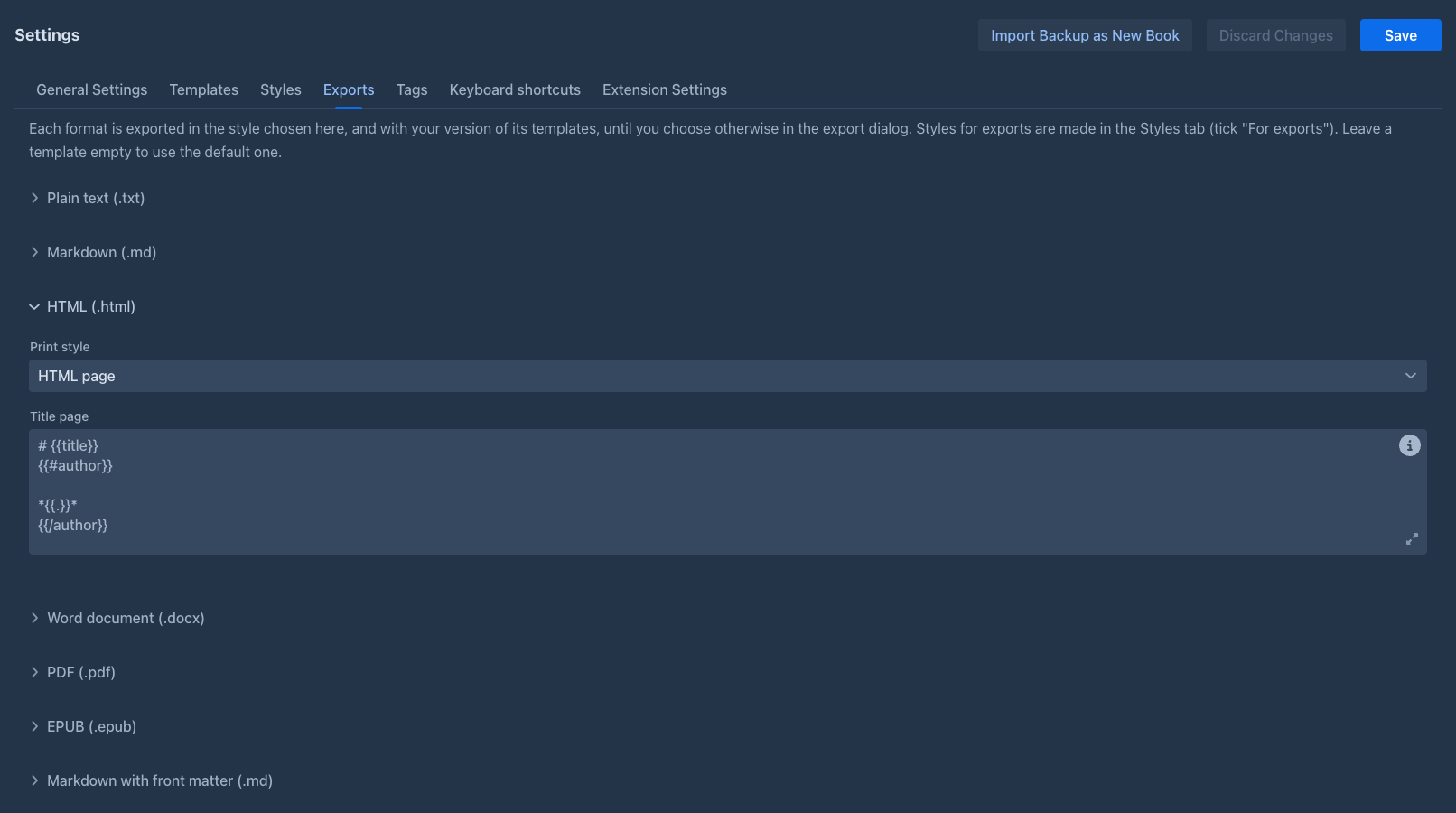
What each file format is exported with: the tab has a section for every format that has something to set (Plain text, Markdown, HTML, Word, PDF, EPUB, Markdown with front matter, Obsidian vault; click its name to open it).
-
Print style (HTML, Word, PDF and EPUB, the formats with fonts and colors) - the style the export dialog preselects for the format. It starts as the look the application brings for the format (HTML page, PDF book...); the list holds the
styles for exports , the built in ones and yours. Choose another to export that format in it every time, until you change the choice in the dialog for one export. -
Front matter (Markdown with front matter and the Obsidian vault) - the YAML block that starts the file, with
,,and. Empty is the default block. -
Title page (every format but the ones for other tools; the Obsidian vault has it in the note of the book) - the template of the title page, a Handlebars template that writes Markdown, with
and(the info icon in the field lists them). Empty is the default one: the title as a heading and the author in italics under it. Fill default in the info popover starts you from the default.
The tab is saved with the Save of the settings and Discard Changes throws its changes away, like the others. A template that is not valid is refused when you save. A style you make in the Styles tab can be chosen here after you save.
Tags
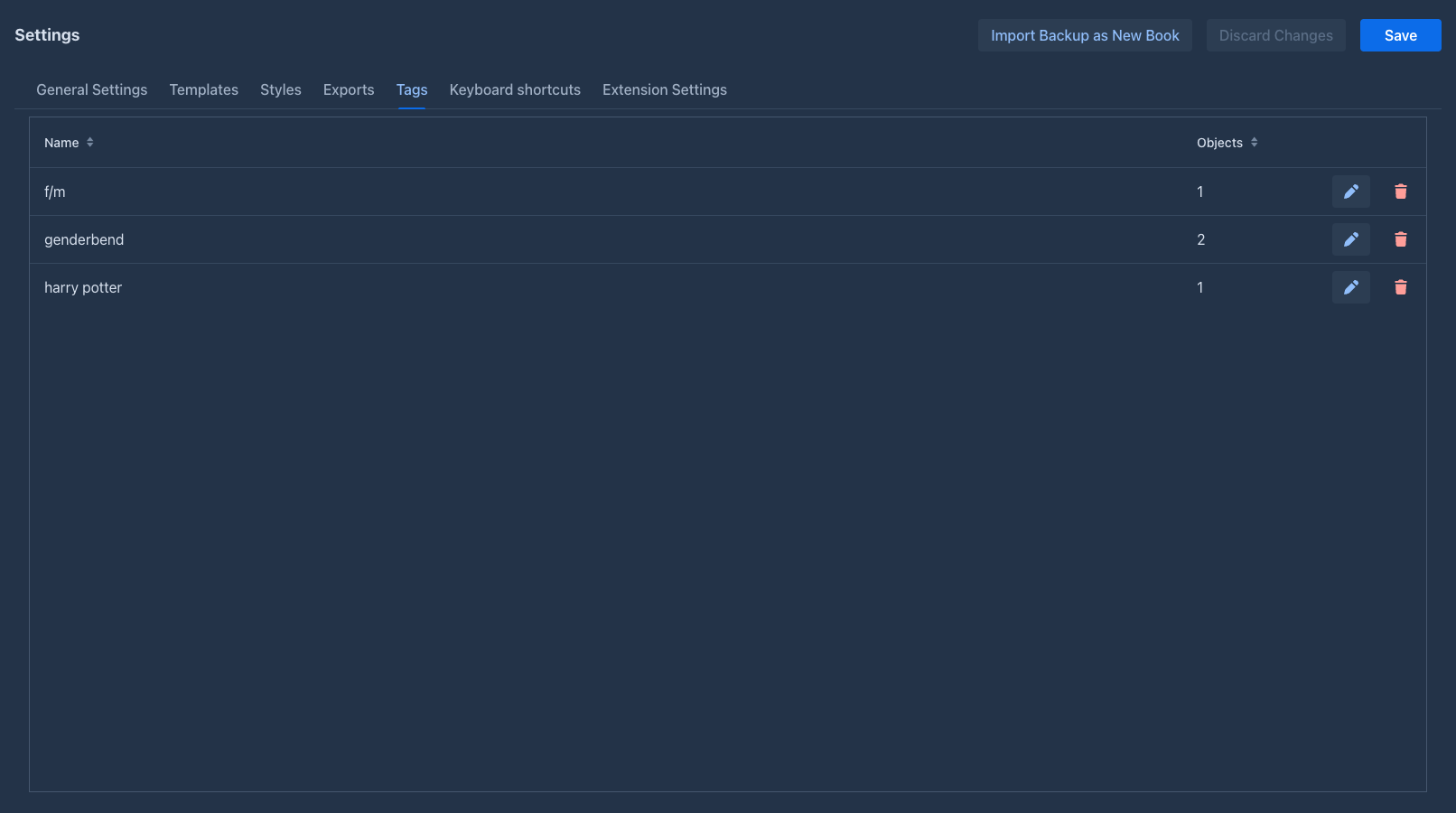
A table of all your tags (the ones you give to books, lorebooks and lorebook entries) with the number of objects each tag is related to. Click a column header to sort by it. Unlike the other tabs, it acts at once: it is not part of the unsaved changes and has nothing to save.
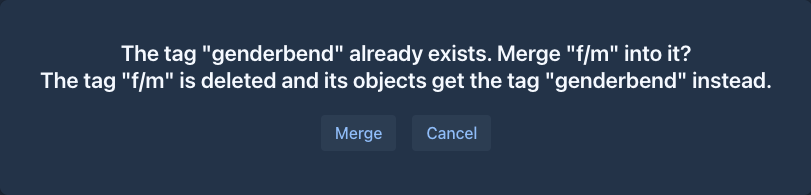
If the new name is the name of another tag (names are compared ignoring case), renaming would make the two tags the same, so you are asked whether to merge them. Merge moves everything tagged with the renamed tag to the existing tag and deletes the renamed one; an object that has both ends up with the existing tag once. Cancel and nothing changes, the tag keeps its old name.
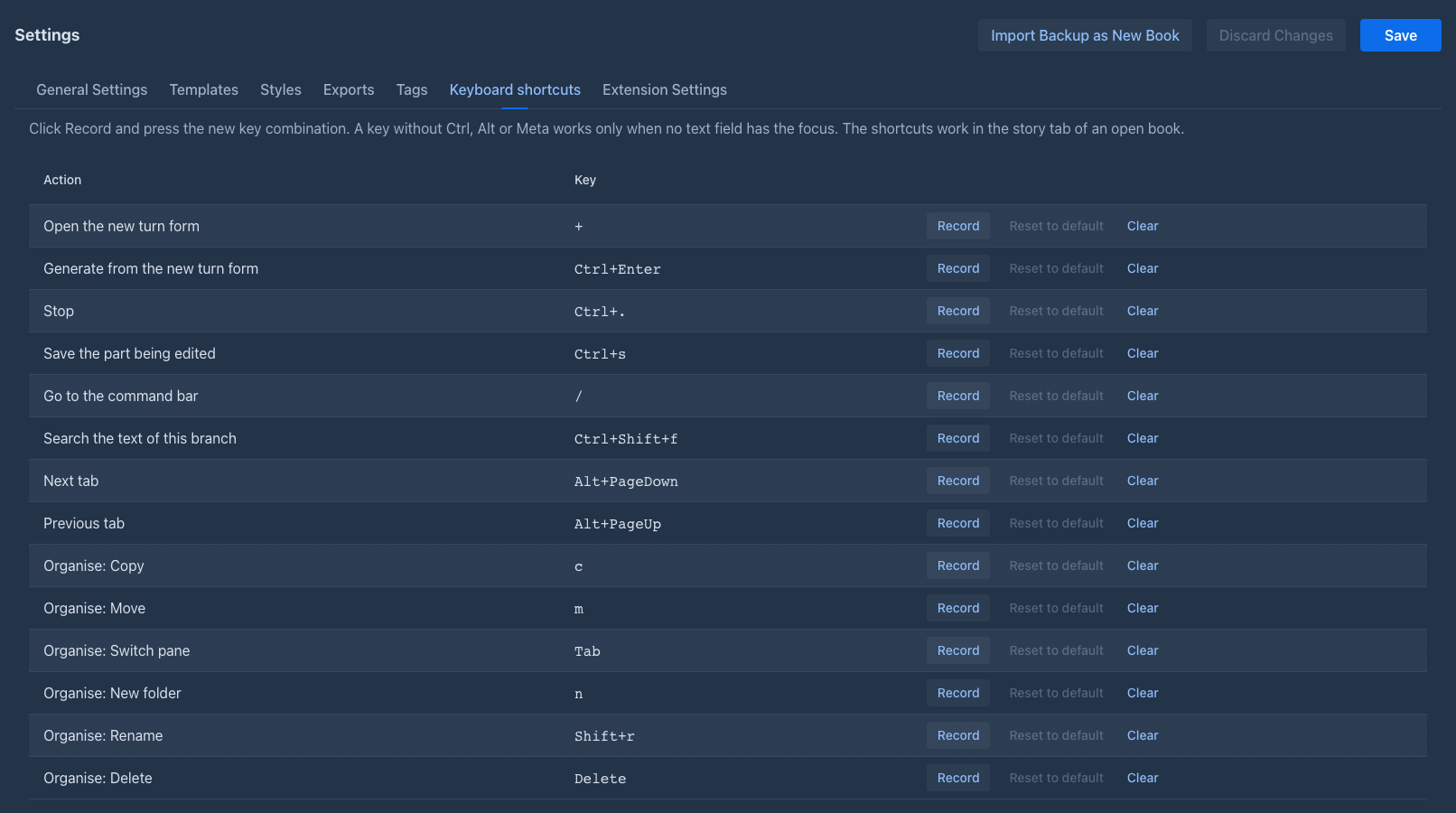
Keyboard shortcuts
The keys of the story editor shortcuts (they work in the story editor on a computer, the phone layout has none). The table lists every action, also the ones extensions bring, with its key, and the keys of the buttons of the Organise window of the book list. Every item of the story's settings menu, of the menu of a part and of the right click menu of its text is an action here (most have no key until you give them one), and the menus show the key next to the item.
A red note names a key two actions share, a key the browser keeps for itself (Ctrl+N, Ctrl+T, Ctrl+W and the like,
the page never gets them) and Alt with a letter (types a character on some keyboards, e.g. macOS). A key without
Ctrl, Alt or Meta works only when no text field has the focus. The keys are saved with Save like the other
settings and apply at once in the open stories.
Extension Settings
Settings of the installed extensions, one section per extension (for example Reviewer Settings and SideQuery Settings). They are saved with the same Save button. The tab is empty when no extension with settings is installed.