Exporting a book
Export turns the story into a file you can read, print, send or publish elsewhere. Unlike a backup it contains only the text, as a finished book.
Only the active branch is exported - the same parts the story editor shows. To export another version of the story, switch to that branch first.
Exporting
-
Open the book and go to the Story tab.
-
Open the settings menu (⚙) in the bottom bar and choose Export story.
-
Fill in the dialog and choose Export.
-
Marginalia collects the parts of the branch and writes the file, which takes a moment for a long book. A progress bar shows how far it is.
-
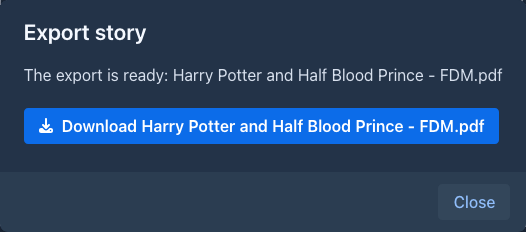
When the file is ready, a dialog offers it for download. Choose the Download button to save it.
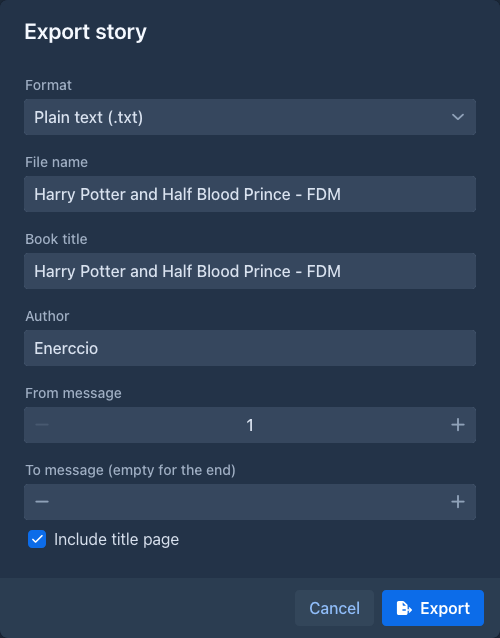
Formats
The text of the parts is Markdown. Emphasis, headings, quotes, lists, code blocks and scene breaks (---) are kept in
every format that can show them. Raw HTML in the text is shown as text, never run.
Images
Images of the parts are placed where their position says (after the text unless you chose another place), with their captions, in the width you gave them (a percent of the width of the text; without a width the picture keeps its size, scaled down to the page). Not every format can put text beside a picture:
For other tools
These formats are made for a tool that reads them, not for reading. They do not have the Print style choice.
HTML for Archive of Our Own. AO3 asks for the title, the author and the chapter titles in fields of its own and drops what it does not
know (style blocks, the page around the text, images that are not links), so the file has no title page. Open it in a browser to see the work as
the paste will look. Every chapter (a part that starts with a heading and the parts after it up to the next heading) has its title above two
comments, BEGIN chapter N and END chapter N: copy what is between them into the HTML editor of the chapter on AO3 and the title into its
title field. The text is clean HTML without line breaks between the tags, because AO3 turns each line break into a <br>.
Markdown with front matter. The same Markdown as the Markdown format, but the file starts with a YAML block (title, author, lang,
date of the export) that Jekyll, Hugo, Eleventy and similar generators read, instead of a title page; Include title page has no effect on
it. The block is a template you can change in Settings → Exports (, , , ; the title and the author are already escaped for use inside double quotes).
SillyTavern chat. A JSON Lines file that the chat import of SillyTavern reads: the character is named after the book and you are the author. Each part of the story is a message of the character (the text), and when the part was written with instructions they come before it as your message. The reasoning of the model, if the part has any, is kept as the reasoning of the message. The title page does not apply.
Obsidian vault. A ZIP with a folder named after the book; unpack it and open the folder as a vault. It has a note named after the book (the
front matter, the title page and the lists of the chapters and of the lore), a note for each chapter in Chapters (with links to the previous and
next chapter), a note for each enabled entry of the lorebook of the book and of its sub lorebooks in Lore/<lorebook> (the tags
of the entry are the tags of the note, its comment is a callout), and the images in Attachments. In every note the first mention of the name of
an entry (a name of at least three characters, whole words, as spelled) is a link to its note, so the graph view shows which entry is in which
chapter. A part with a heading starts a chapter; parts before the first heading are the note Beginning (or Story when the book has no headings).
The front matter and the title page are templates you can change in Settings → Exports.
Print styles
The export uses the text styles of Settings → Styles that are marked For exports. Styles are either for books (the story and the reader) or for exports: the Change Styles For Text menu and the reader show only the first kind, the export dialog only the second. The four built-in ones are the looks of the formats; Duplicate one (or a book style, and tick For exports) to make your own, for example the Book style on paper. The style is worked out for paper: colors that depend on the theme of the application (the light text of the dark theme) become the dark ones for a white page.
Drop caps, the custom CSS (PDF, Word, EPUB), small capitals of headings and the text width are not made in the PDF and Word files.
Title page template
The title page is written from a template, one for every format. Change it in Settings → Exports: the template is Markdown
with (the book title of the dialog) and, for example ## and a line written by . The default is the
title as a heading and the author in italics.
Table of contents
When the text contains chapters, the file gets a table of contents after the title page. A chapter is a part of the
story that contains a Markdown heading (a line starting with #, e.g. # Chapter 3: The Harbour) - the same rule the
Chapter Marker plugin uses in the story sidebar. The first heading of a part is its title, parts
without a heading belong to the chapter before them. A story without any heading has no table of contents.
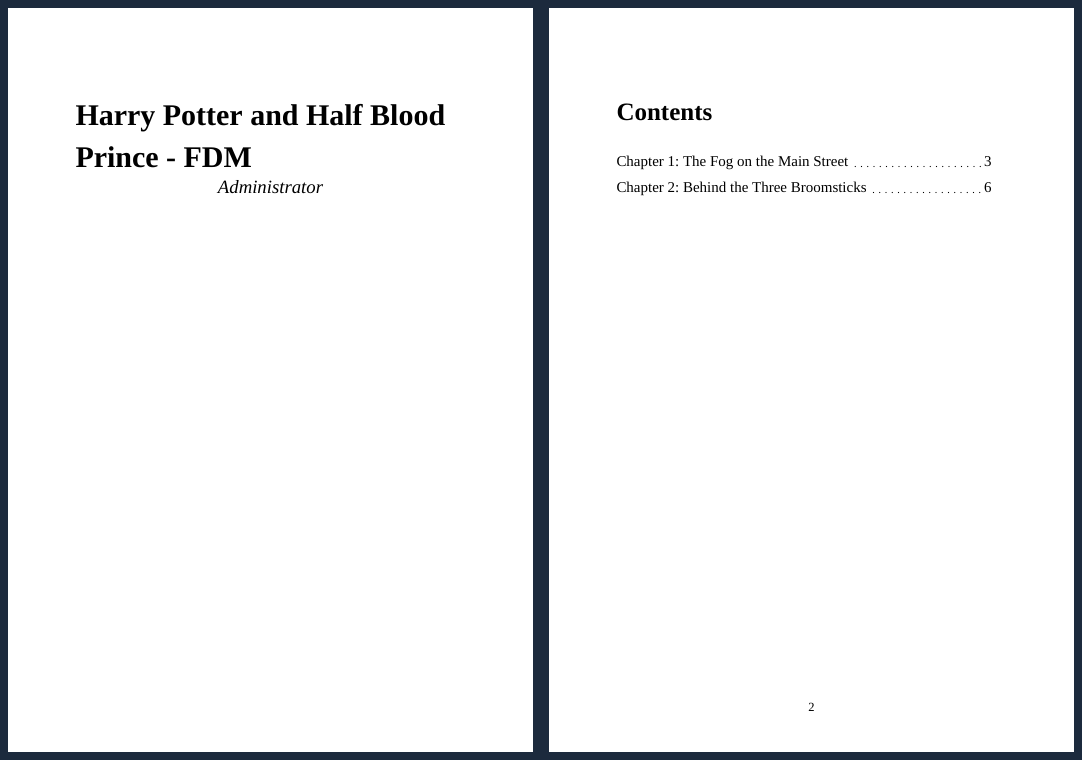
In PDF, Word and EPUB every chapter starts on a new page. The title page and the table of contents are pages of their own as well.
The entries are links to the chapters:
Page numbers
The PDF and Word files have the page number in the footer of every page except the title page. The number is the position of the page in the file, so the title page is page 1 and the first page after it is page 2. The other formats have no pages of their own.
The title page
With Include title page, the file starts with the book title and the author on a page of their own. The page is
made from a built-in template (DEFAULT_EXPORT_HEADER_TEMPLATE), which isn't editable in the application yet.
Good to know
-
The export is a snapshot of the branch when you choose Export. Parts generated or edited afterwards are not in the file.
-
The exported file is kept only until you close the download dialog. Export again if you need it later.
-
Summaries, lorebooks, instructions and the model's reasoning are not exported, only the text and the images of the parts. To save all of it, make a backup.