Audiobook
Turns a book into an audiobook, part by part, with a text-to-speech server: a voice for the narrator and one for each character, kept with the parts of the book and played in the reader. You can let it run (the model labels who speaks and how, the speech server reads) for a rough draft, or work on the parts one by one in the Audiobook studio, looking at exactly what is sent to the speech server and changing it by hand, and export the result as mp3 files with chapter marks.
The extension does not make speech itself: it talks to a Chatterbox-TTS-Server that you run (see Setting up the speech server). The text of the book is never changed and never sent to anyone but the servers that you named; the audio is stored in your own installation, as resources linked to the parts.
What you need
-
A speech server and, if it shares the graphics card with your language model, the requests that make room for it and stop it again (Setting up the speech server).
-
Voices: a short reference clip (12 to 30 seconds of one person, no music) for every voice you want to clone, or one of the voice files the server has. A narrator needs a calm, steady reading voice.
-
For a book with several voices, a language model that can label the text. It is the model of the book by default.
-
ffmpeg is optional. Without it everything works with mp3. With it on the server (it is in the Docker image, and on a desktop it is found on the
PATHor in the usual folders such as/opt/homebrew/bin; the variableMARGINALIA_FFMPEGnames it when it is somewhere else) the export gets the format m4b, and an administrator can store the audio as wav.
The settings
Settings → Extension Settings → Audiobook Settings is the panel of your account; save the Settings page after changing it.
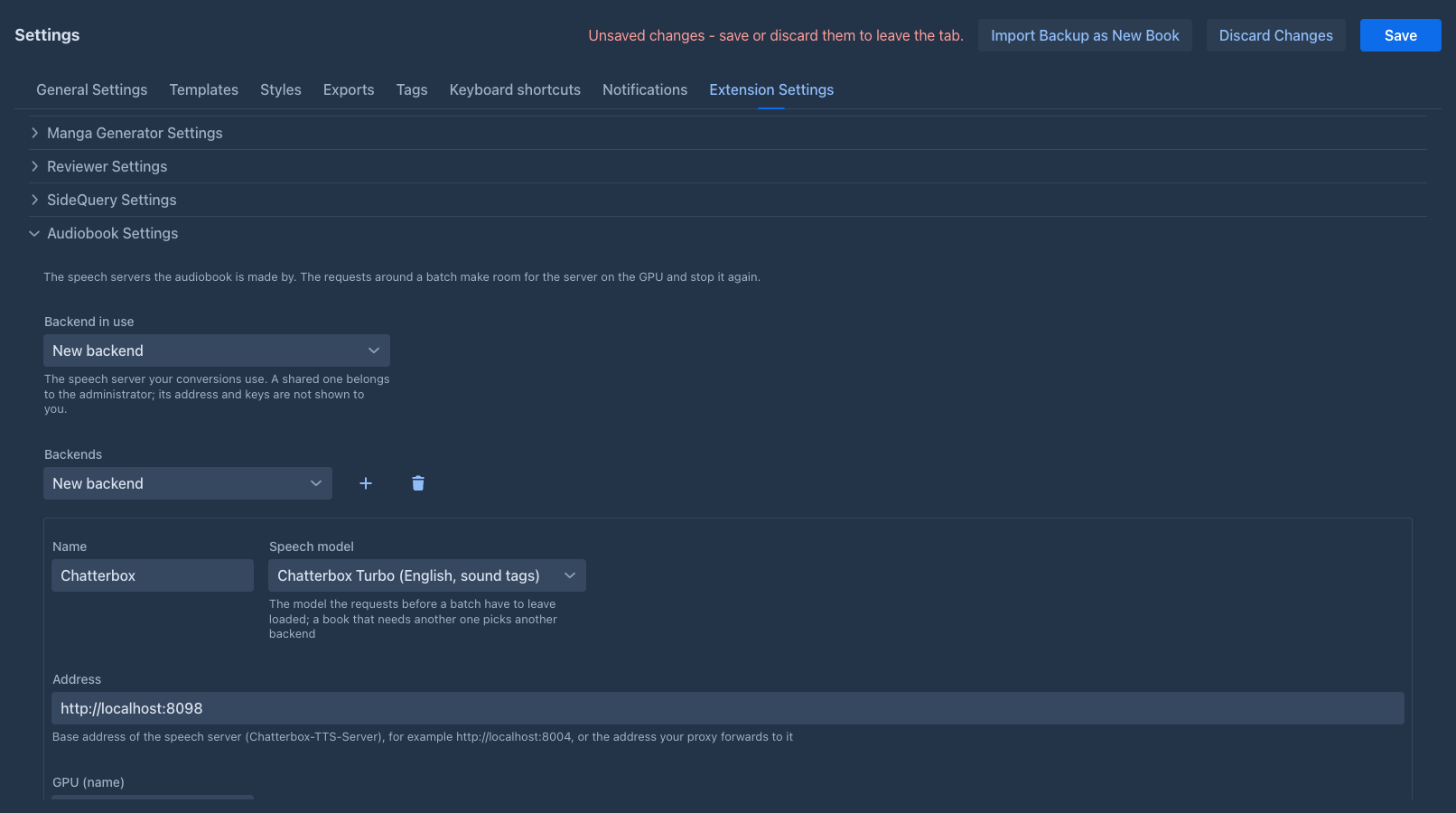
Backends
A backend is a speech server and the model it speaks with. Add one with +. Duplicate copies the selected one (address, keys, GPU lock, voice, defaults and the requests before and after a batch) under a new name: the quick way to a backend of another model on the same machine, for example Higgs next to Chatterbox, where you then change the model, the address and the start and stop requests.
Test connection does what a batch does: it takes the GPU lock (so a speech server that is stopped is started), makes the requests before a batch, asks the server whether it is there and has a model loaded, and makes the requests after the batch. Without a lock or requests it only asks.
A book that has pieces in another script (Japanese in an English book) sends them to the multilingual model, if you have a backend for it, with their language; they stay on the model of the book when you have none. A Higgs book keeps them: Higgs reads them itself, in the same voice.
Higgs Audio v3: emotions and sounds
With a Higgs Audio v3 in ComfyUI backend the labels of the language model are heard. The address of the backend is your ComfyUI (with the TTS Audio Suite nodes, see Setting up the speech server).
-
The delivery of a piece of speech is spoken: sad, angry, joyful, amused, tense, fearful, surprised, tender, sarcastic, pleading, desperate, disgusted, aroused, a whisper or a shout. A strong one (intensity 0.8 and more) is more expressive, a faint one (below 0.2) is read plainly. The narrator reads plainly.
-
The language model may put more sounds into speech than for Chatterbox Turbo: laugh, chuckle, giggle, sigh, gasp, cough, clear throat, sniff, sneeze, groan, cry, sob, scream, pant, moan, hum and shush.
-
The program also reads the narration around each speech (English) and gives the speech the sound it names, where the model put none: "You look funny," she giggled. gets a giggle, She burst out laughing. "Careful!" a laugh, a soft moan escaped her lips. "Yes..." a moan, panting or out of breath panting, cried quietly or burst into tears crying. It leaves out what only looks like a sound: "Stop!" she cried. (an exclamation), moaned about the weather, the wind moaned, the floorboards groaned, stifled a giggle, didn't laugh, and a sound the narration gives another named character. "You look funny," he mocked her. gets a sarcastic or amused delivery and no sound. The narration itself is read as written.
-
The narrator is always read plainly: no sounds and no mood, also for a speech the model left to the narrator.
-
Higgs needs no clip per mood: one clip of a voice is enough. It copies the recording of the clip, so a clean one matters more than with Chatterbox (
A good clip ). -
Every piece is made by ComfyUI and its memory is emptied after it (a few seconds a piece), which keeps some graphics cards from crashing.
-
Higgs often goes on after the last word of a piece (a breath, the start of another sound) and the clip ends in the middle of it, which is heard as a short "whoosh" before the pause. With ffmpeg the extension cuts that tail and fades each piece out; without it the pieces stay as Higgs made them.
-
The Higgs Audio v3 model is under a research and non-commercial licence: an audiobook you sell needs a licence from Boson AI.
Speech recognition
Speech recognition writes down what a piece of speech says. It checks the pieces of a batch (when a backend has Check the words with speech
recognition) and recognises the
Test connection checks that ComfyUI has the nodes, or that the server answers. The pieces of a batch are checked after the batch, when the speech server is given back, so the recognition and the speech model never need the card at the same time.
Cleanup of clips
Cleanup of clips cleans a reference clip on a ComfyUI with the TTS Audio Suite (the same
one as for Higgs works). The result is a new version of the clip in
A step is one of:
-
Separation model: a model of the suite that splits the audio in two, the extracted part and the remaining part, and keeps one of them. Which part holds the voice depends on the model: a vocals model (
MelBandRoformer) extracts the voice, a denoise or de-reverb model extracts the noise or the room, so keep the remaining. Aggressiveness (0 to 20) decides how much is taken away. -
Voice fixer: restores a degraded voice (a phone, an old recording). It changes the sound of the voice more than a separation does.
-
ffmpeg (here): the filter of Clean with ffmpeg, run by the application between the steps on ComfyUI.
-
Normalize loudness (here): raises (or lowers) the level of the clip to the loudness you give (-18 LUFS, as the audiobook, by default), with ffmpeg in the application. Only the level changes, the peaks are kept below clipping. Put it last, after the steps that take something away (they leave the voice quieter). A cleanup of only this step (and the ffmpeg filter) does not use ComfyUI or its GPU lock.
The cleanups it comes with: Voice from music (the voice out of a film or a song), Remove noise, Remove echo (the room and the echo), Raise a quiet voice (the loudness step alone), Restore the voice and Film or game clip (the voice out of the music, then the room, then the noise: removing the noise first made the room of a film clip stand out). Remove echo needs a fix in some ComfyUI setups, see the speech server. Test connection checks that ComfyUI has the nodes and fills the list of models with those of your server. The models are downloaded by ComfyUI the first time a cleanup uses them.
Shared speech servers
On an installation with several users the administrator can keep speech servers for everybody, so that one GPU machine is set up once and nobody needs an address or a key. The administrator does it in the same panel (the last sections, seen only by administrators): Shared speech servers opens a window with the same fields as a backend of your own, plus who may use it: all users, or the users picked in the list. A switch there, Users may add speech servers of their own, decides whether the backends below are still allowed.
What you get:
- Backend in use at the top of the panel lists the shared servers you may use (marked (shared)) and your own. The Convert to audio window and the studio use the one you pick; the commands use it too.
- You see only the name of a shared server, never its address, keys or requests. The batches of all users on one server address wait for each other, so two users cannot start the same GPU twice.
- When the administrator takes a server away from you, a job that still names it is refused; pick another one.
- When the administrator turns your own servers off, the panel says so. The ones you added are kept and are used again if the switch is turned back on.
- A shared server's Narrator voice should be a voice file of the server (
predefined:Henry.wav): a reference clip is a resource of one user and cannot be read by the others. Voices of your actors work as always.
Actors
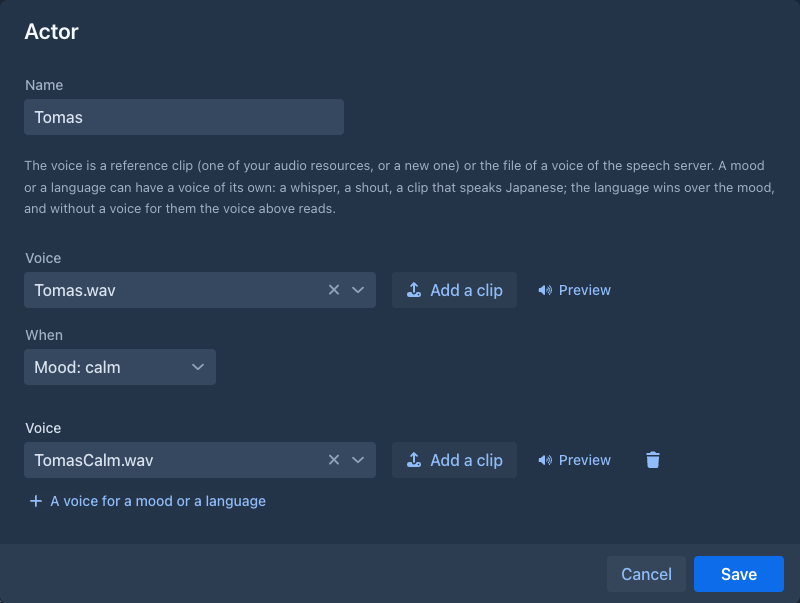
An actor is a voice of yours: a reference clip (one of your audio resources, or a new one uploaded here) or a voice file of the server, with voices of its own for a mood (a whisper, a shout) or a language (a clip that speaks Japanese). The language wins over the mood, and without a voice for them the voice of the actor reads. Your actors are kept in your account; any book can give an actor to its narrator and its characters.
An actor can have a tagline, a short note of your own: the character they play, a book, deep and old, any tag that helps you pick the right one. The pickers of an actor (the settings, the cast) show it under the name, and Voices and clips under the name in the list of actors. In the cast, type into an actor box to find an actor by a part of its name or of its tagline.
Preview next to a voice (in the actor, the settings and the cast) has a few sentences spoken with it (a short one in the language of the voice for a language) and plays it; when the GPU holds something else, the GPU lock loads the speech server first. The arrow beside it offers other samples: with sounds (a sigh, a laugh, a gasp) for the models that voice them (Chatterbox Turbo, Higgs Audio v3), and for Higgs every mood of the labelling (sad, whispered, sarcastic...). When the voice is a clip, the button with the audio file plays the reference clip itself as it is stored, at once (no speech server, no GPU). The actors are listed by name.
Each sample takes the GPU for itself only. The GPU stays loaded with the speech server after a sample, so the next samples come at once, until a request of the language model (or another server) needs the GPU.
Voices and clips
Voices and clips (next to the actors) is one window for your actors and the clips their voices are cloned from. It has three tabs, side by side at first: Actors, Clips and Clip. Drag a tab to put it beside, under or together with another one; the window opens again the way you left it.
-
Actors: each with its voice, how many other voices (moods, languages) it has and the worst quality of its clips; add, edit or delete one. The crosshair of an actor whose voice is a clip selects that clip in Clips, opening the folders above it.
-
Clips: your clips in folders (for example one per character), with the versions made from a clip under it, each with its length, its quality and where it is used (actors, with the mood or language, and the narrators of your backends). Add a clip uploads one. The folders start closed; what you open stays open while the window is open, also after a change of a clip.
- Tick clips (folders have no box) to work on several at once. Merge makes a new clip of the ticked clips one after the other, in the order of the list, with no pause between them: a longer reference from short takes of a voice. It is named after them, goes into their folder when they share one and gets their texts when each has one; the ticked clips stay. Wav clips of one format are joined as they are; mp3 clips or wavs of different formats need ffmpeg. Delete checked deletes the ticked clips after asking; a clip that is still used stays, and the message names it.
-
Clip: the selected clip.
-
Name and Folder: rename the clip (the file keeps its name) and put it into a folder, a new one by typing its name. A version stays in the folder of the clip it was made from, and says what it was made from and how.
-
Its waveform: click to put the playhead there and Play, or drag over it to select a range (the From and To fields follow, to the hundredth of a second, and the selection follows them). The magnifier zooms into the selection for a precise edge, the other one shows the whole clip again. Play the selection plays the range, Play around the cut plays the second and a half on each side of it without it: how the clip sounds when the range is cut out.
-
Download it (named after the clip and its version), read what is wrong with it, Replace... it, or Delete it (only when nothing uses it; its versions move up to the clip it was made from).
-
Clean with ffmpeg makes a version that is less steady hiss and hum. It does not remove music, effects or other voices.
-
Clean with AI makes a version with the chosen
cleanup on ComfyUI. It runs in the background: you can go on working, and a message says when the version is ready. -
Trim makes a version with only the selected range of the clip (Keep this part) or without it (Cut this part out), for a sound no cleanup removes: an animal, a cough, a door. The joins are faded so that they do not click. A wav clip is trimmed without ffmpeg, an mp3 needs it.
-
Use this version puts a version wherever the clip it was made from is used. The parts are made again with the new voice, and the old clip stays until you delete it.
-
Try the voice: type a text and Speak: the backend in use says it with this clip exactly as typed (no labelling, no sounds added), with the Seed you give (empty: 42, the one of the conversions), and plays it. The ⓘ lists the tags the backend's model reads, in its own syntax (
[cough]for Chatterbox Turbo,<|sfx:cough|>or<|emotion:sadness|>for Higgs); a click puts one into the text. It takes the backend's GPU lock and shows in the jobs like a conversion. Cleanup and recognition of a clip are jobs too. -
Text of the clip: the words spoken in the clip. Type them, or press Recognize to have the
speech recognition write them down, correct them and Save. The actor dialog shows the same field for the clip of the actor's voice. A version and a replacement take the text over. Higgs is given it only when the backend sends it (off by default).
-
-
Replace... puts another clip, one of yours or one you upload there, everywhere the clip is used.
Pickers of a voice (the actor, the narrator of a backend) show a clip as folder / clip › version.
A good clip
A voice model copies the recording, not only the voice: the room, a hiss, the music under a film scene come back in every line, often as a soft "whoosh" under the words that no filter of the result removes. So:
-
Use a clean recording of one speaker with real pauses (a voice actor's sample, a reading made at home in a quiet room), 12 to 30 seconds. A clip cut from a film or a series is the worst case.
-
The quality marks are measured from the clip: Clean (the pauses are at least 45 dB under the speech), Fair (35 to 45 dB, or longer than 30 s, which Chatterbox cuts), Poor (background sound, under 35 dB; distorted; shorter than 8 s). A clip that is not clean is reported when you add it.
-
A separation model keeps what sounds like a voice: an owl's hoot or a bird's song stays (in the test with several models). Cut such a sound out with Trim.
-
Clean a clip with AI (
Cleanup of clips ): in the test the Film or game clip cleanup took a clip with hiss, hum and an echo from Poor to Clean (the pauses went from 38 to 89 dB under the speech). Listen to the version before you use it: a separation model can also take away a breath or the end of a soft word. The ffmpeg cleanup only lowers a steady noise: on a film clip it gained about 3 dB and the clip stayed Poor. -
Without a ComfyUI, clean a clip by hand: the noise reduction of Audacity with a noise profile taken from a pause of the clip, or a vocal remover such as Ultimate Vocal Remover for a clip with music.
Converting new parts by itself
Convert new parts to audio by itself is the default for all your books; see
The cast and the pronunciation of a book
Both are kept with the book (they travel in its backup) and are edited from the Convert to audio dialog.
Cast says who reads: an actor for the narrator, one for other speakers (whoever the model names that the cast does not have; empty: the narrator reads) and one for each character. A character has a name and other names the text may use for it (Tom for Tomáš Novák), separated by commas; a speech is given to the character when its name, one of the other names, or a word of the name that no other character shares, matches, ignoring the case and the accents. Add the characters of the book fills the list from the point of view and present characters of the parts.
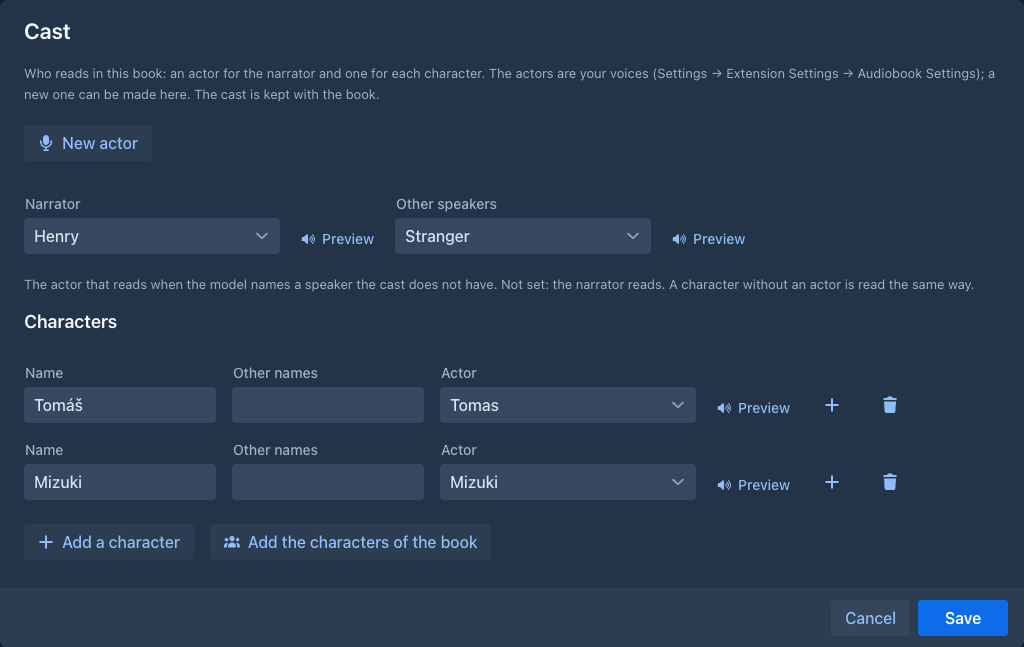
Unnamed speakers (the guard, the innkeeper, the girl at the window) can each get a voice of their own from one or two recordings. Give the cast base actors: Other men, Other women and, if you like, Children (empty: the women's voice, raised). The labelling then also tells the gender and age of every speaker the cast does not name, and each of them speaks with a variation of the base clip of their kind: a little higher or lower, other formants, faster or slower, darker or brighter. A teenage boy gets the men's voice, a teenage girl and a child the women's, an old speaker a lower and slower one. The variation comes from the name of the speaker and the book, so the same speaker sounds the same in every chapter and on every run. Leave all three empty and every unnamed speaker is read by Other speakers, as before.
The speakers met so far are listed under the bases with the gender and age they got first (a later part does not change them). You can correct the gender or the age, hear the speaker, give them another variation (the dice), or remove them from the list. A changed speaker is made again the next time the parts are converted.
A variation needs ffmpeg with the rubberband filter on the server (the Debian and Ubuntu packages, which the Docker image installs, are normally built with it; ffmpeg -filters | grep rubberband shows whether yours is). Each one is made once, when it is
first needed, and kept as a hidden copy of its clip, so it travels with your backups. Without ffmpeg the cast says so: unnamed speakers
share the base voice of their kind, and the variations already made are still used. A variation only changes a clip of yours; an
actor whose voice is a voice of the speech server is used as it is.
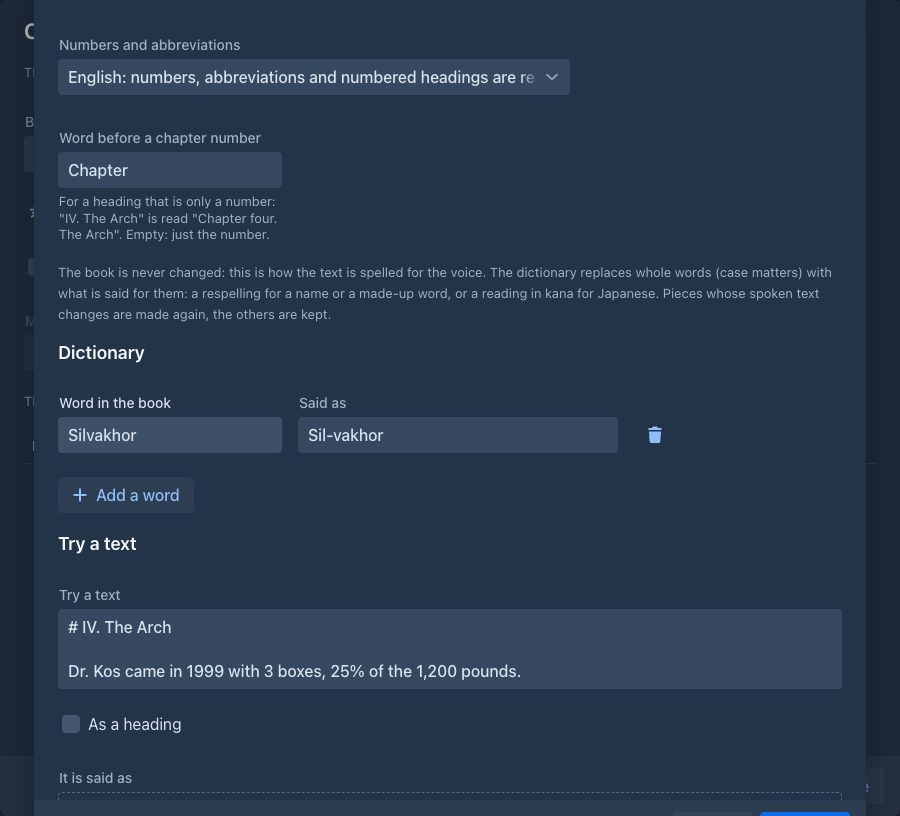
Pronunciation is how the text is spelled for the voice; the book itself is never changed. The dictionary replaces whole
words (the case matters) with what is said for them: a respelling for a name or a word you made up, or a reading in kana for
Japanese. For a book in English the rules also read the other things aloud: numbers, ordinals, years, times, money and
abbreviations as words, a heading that is only a number as Chapter four. The Arch (the word before the number is yours), markdown marks
such as * are dropped, and a scene break (***, ---) is not read but is a longer pause. Switch the rules off for a book in
another language; the dictionary still applies. Try a text shows what a piece of text will be read as. A piece whose spoken text
changes is made again, the others are kept.
Converting a book
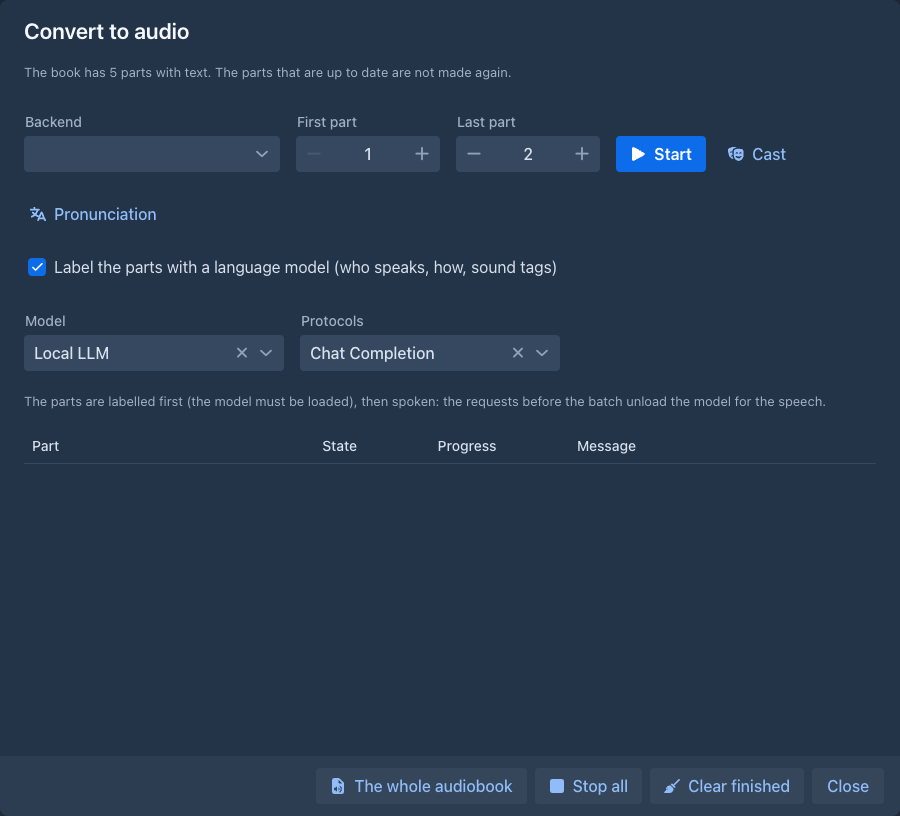
Tools menu of the story editor (the cogs button) → Convert to audio.
-
Choose the backend and press Load: the parts with text of the active branch are listed (the first is 1) with what each has: Not generated, Labelled (the model's labels are stored, no audio yet), Generated (with a play button and a download) or Generated (the text changed) (the audio was made from an older text and is made again); (final) is added to a part the studio marks final.
-
Leave Label the parts with a language model off for the plain version: the narrator reads every paragraph. Turn it on to have the model decide who speaks each piece of speech, how (calm, whisper, shout...) and where a sound tag fits, and the cast gives the voices. The model of the book is chosen; pick another if you like. The parts are labelled first, then spoken. A part that already has labels for its text is read with them also when the box is off (the model is not asked), so running a labelled book again without the box does not turn its dialogue into plain narration; Remove labels is how you ask for plain narration or new labels.
-
Tick the parts (the box in the header ticks them all) and plan what to do with them; the Plan column shows it and nothing is done yet: Generate (make what is missing; a part that is up to date is not made again), Regenerate (delete the audio, remove the labels, generate), Delete audio (the pieces and the joined audio of the part; the labels stay), Remove labels (the model is asked again the next time the part is made), Clear the plan. Steps add up on a part (Delete audio and Remove labels without Generate only clean up); a part marked final is left out of every plan.
-
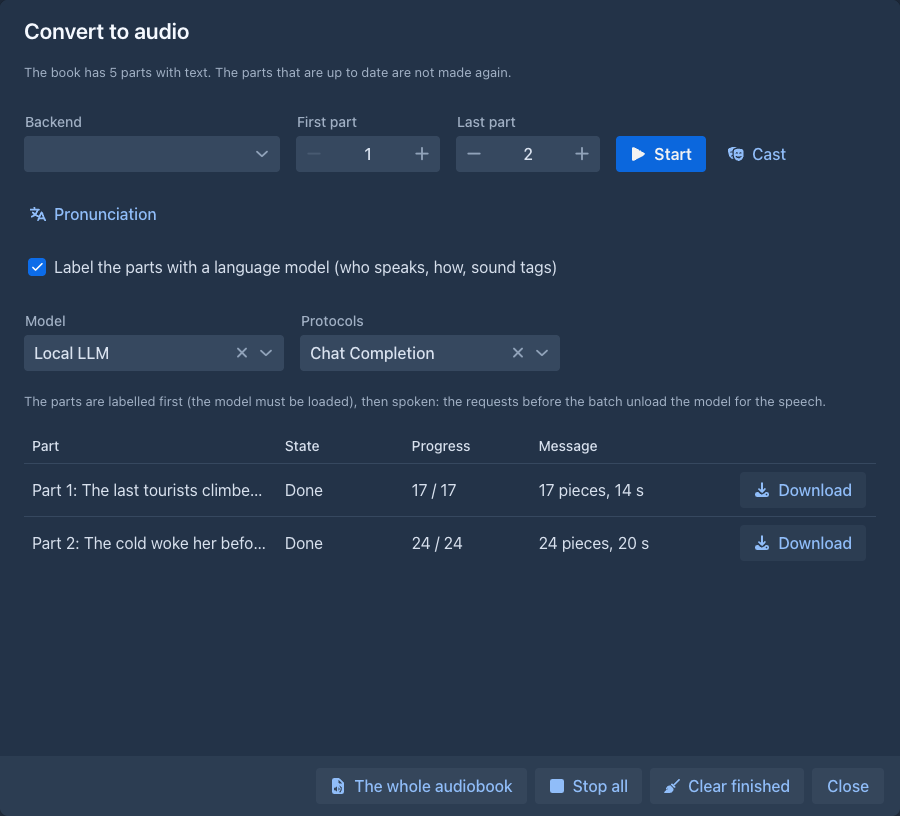
Start carries the plan out. When it takes audio or labels away it asks first. What is to be generated goes into your queue, which goes on when you close the window and when you leave the page; a part that waits or runs in the queue is left out of a plan. The state, the pieces made so far and the message of the job are shown on the part's row. While the model labels a part its row says Labelling pieces 17-32 of 120 (the model is asked about 16 pieces at a time); click the state of a part that was labelled to read, for each request, the model's reasoning and its answer, as they arrive. When the labelling of the part ends (also when it fails or is stopped) all of it is kept with the part, every run after the ones before; read it again, or delete it, with Reasoning in the studio. New labels and new audio leave it alone, and it is in the backups and exports of the book with the audio.
How a part is made, so you know what to expect:
-
The text is split by the program, never by the model, into pieces of narration and pieces of direct speech (between straight or curly double quotation marks or Japanese corner brackets; a heading is narration). The model only labels the numbered pieces. A text with sound tags is used only when it is the piece with tags added and nothing else changed, so the model can never change your book.
-
Who speaks a piece is the model's call for speech; narration is the narrator's. A letter, a note, a message or a character's thoughts has no quotation marks, so the program calls it narration. Such a piece is read by the character (the voice of the cast) only when it starts in italics (
*...*or_..._) and the model names the character, from the context (a signature, "the handwriting was unmistakable"). Third person narration, also when it is told from a character's point of view ("She watched as Percy crossed the room"), is always the narrator: the program ignores a character the model gives to a piece without italics. Italics for emphasis, sounds or foreign words are narration too. The words are always yours. -
The instruction to the model is a template you can change. Settings → Extension Settings → Audiobook Settings → Labelling prompt is your default; a book (Prompts tab → Extension Settings → Audiobook) or a folder can have its own. Empty means the one of the folder above, then yours, then the built-in one. It is written like the other prompts: the variables are
,,and, and the hints popover has Insert Default Template. A changed instruction makes the labels of the parts to be asked again the next time they are made. -
The loudness of the parts is levelled when the program ffmpeg is installed (the same one that makes the
.m4b): the joined audio of every part is brought to one loudness (EBU R128, linear, so the dynamics stay; -18 LUFS unless you change it in Settings → Extension Settings → Audiobook Settings, where you can also turn it off). The pieces are kept as the server made them, only the joined part is levelled, so an audiobook does not jump in level from part to part. Parts that were made before are not touched until you convert them again: that joins them again from the stored pieces and levels them, and asks the speech server for nothing (no unloading of the language model either). Turning the levelling off leaves the parts that were levelled as they are. If ffmpeg fails for a part, it keeps its audio as it was and the result says so. -
All the parts of one click are made in one batch per speech model: the requests before the batch run once, then all the pieces are spoken, then the requests after the batch run once. This is what keeps the graphics card from swapping models for every part.
-
Every piece is kept by its content (text, voice, model, language, settings, seed). A part that is already up to date costs nothing, a changed paragraph is the only piece made again, and a part that failed keeps the pieces already made when you press Retry.
-
The pieces are joined with pauses that depend on where they are (after a heading, between paragraphs, before he said) into one mp3 per part, kept with the part.
-
While a generation of yours runs, the speech waits, so the language model is not unloaded under it.
-
A part that you marked final in the studio is left alone, and the dialog says how many were.
-
The whole audiobook joins every part that has up to date audio into one mp3 with a chapter mark for each part and shows a download link under the list (the parts left out are named). The same file is the export format one mp3 with chapter marks.
-
Stop all cancels the waiting parts and stops the running one at once: the request to the language model (the labelling) or to the speech server (the piece being spoken) is dropped, not waited for. A batch stopped before it began does not send the requests before it, so the language model stays loaded. A part whose pieces were all made before the stop still gets its audio (it is only joined); the others keep the pieces they have, and the next run makes only the missing ones. Download gives the mp3 of a done part.
The Audiobook studio
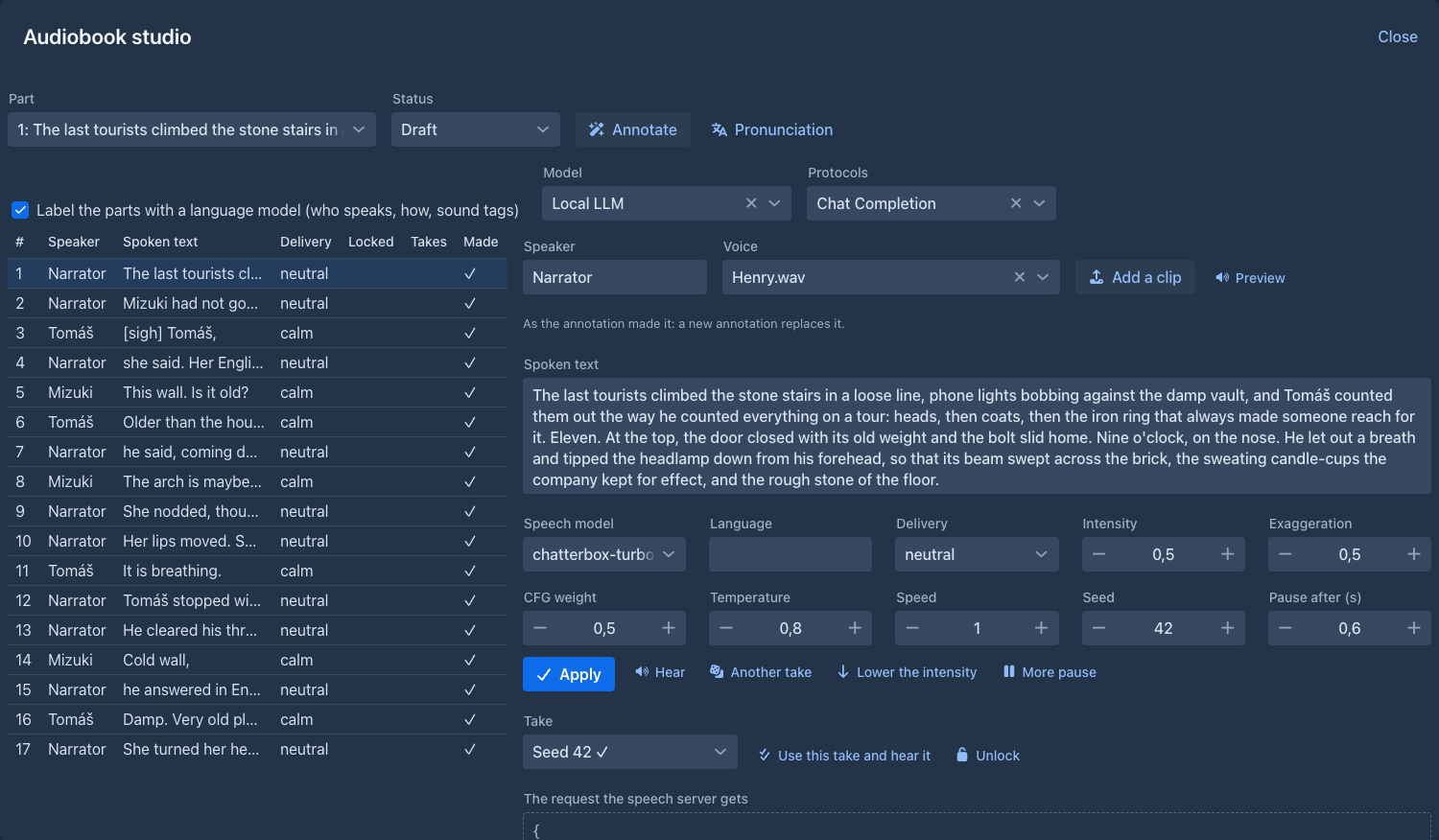
Tools menu → Audiobook studio (the voice of the selected piece, with a preview, is beside its speaker) is where the final audiobook is made, a part at a time: you see the script, change it, listen to a piece and make the part.
-
While the part is being annotated or made, a bar shows that something is going on and the buttons that would start more work wait.
-
Annotate makes the script of the part (with the language model if you ask for it, else with the narrator) and shows the pieces in a table: speaker, delivery, intensity, the spoken text and a mark for a piece you changed. While it runs a Stop button appears beside it and ends the request to the language model.
-
Reasoning shows what the language model said each time it labelled the part (the date of the run and the pieces of each request, its reasoning and its answer), so you can see why a line went to a speaker or got a delivery. Delete the reasoning there removes it; the labels and the audio stay.
-
Select a piece to edit its speaker, the spoken text, the delivery, the intensity (the exaggeration of the voice, for the models that have one; on Higgs the delivery and the intensity are the marks such as
<|emotion:sadness|>at the start of the spoken text, which follow them when you change them), the language, the seed, the pause after it. Apply keeps the change and locks the piece: a new annotation leaves a locked piece as it is. Unlock gives it back to the annotation. The request the speech server gets shows the exact request. -
Hear makes the audio of a piece (only that piece, the speech server is started for it); Another take makes it again with a new seed, and the takes are kept so you can choose the one you like (Use this take and hear it). A good voice is often a matter of the seed.
-
Make the part from this script joins the pieces as they are, with no new annotation.
-
The status of the part is draft, reviewed or final. A final part is not annotated or converted again, and the export can be limited to the parts that are final.
Exporting
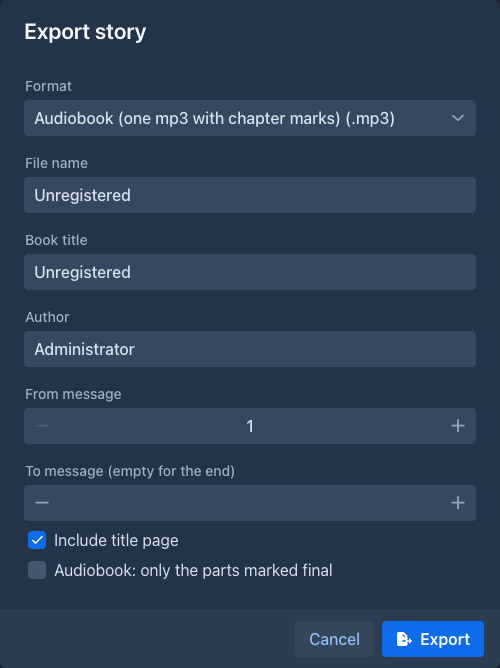
The audiobook is a format of the book's Export story: Audiobook (one mp3 per chapter, in a zip), Audiobook (one mp3 with chapter marks) and, when ffmpeg is installed, Audiobook (one m4b with chapters). They are made of the audio of the parts that are up to date: a part that has no audio, or audio older than its text or than its script in the studio, is left out and the window says which. The mp3 files carry ID3 tags (the title of the book, the chapter, the track), and the single file has chapter marks that players such as VLC and most audiobook apps show; the zip has a playlist. The check box Audiobook: only the parts marked final limits the export to the parts you finished in the studio.
The m4b is the format Apple Books and most phone audiobook apps want: AAC audio (64 kbit/s, enough for speech) in an MP4 container with the chapters, the title, the author and the genre. ffmpeg makes it, so the format is offered only on a server that has ffmpeg. Audio stored as mp3 is encoded a second time for it; audio stored as wav is encoded once.
How the audio is stored
An administrator chooses it for the whole installation in Settings → Extension Settings → Audiobook Settings (the last section, seen only by administrators):
- mp3 (default): small, joined without a decoder, no ffmpeg needed. The m4b is a second lossy step.
- wav: lossless, about ten times the size (an hour of speech is about 170 MB), needs ffmpeg. The pieces are asked from the speech server as wav and joined as wav; the browser plays it as it is; the mp3 and zip exports are encoded by ffmpeg (96 kbit/s) and the m4b is encoded once.
The choice applies to what is made from then on. Parts made before keep their audio and are understood as they are; a part of both kinds (a locked piece of the studio from before) is joined as wav, and an export of parts of both kinds works, but needs ffmpeg.
An export of the whole book is made from the stored files of the parts into temporary files of the server and downloaded from there, so its length is not limited by the memory of the application, but the temporary folder needs room for about twice the audio of the book (with wav, about 350 MB an hour) while it is made.
Automatic conversion
A book can make the audio of a new part by itself, as soon as the part is final: after the automatic annotation, redraft and translations if the book has them, as the last step of what follows the part (in the panel of the runs until the audio is made; its Stop takes the part out of the queue). It is off by default. Choose it in the book's Prompts tab under extension settings, for a folder of books, or for all your books in the audiobook settings; the nearest one wins:
- No,
- Yes: the narrator reads the part,
- Yes: labelled by the model of the book, the cast gives the voices; a book without a model gets the plain narration, and you are told.
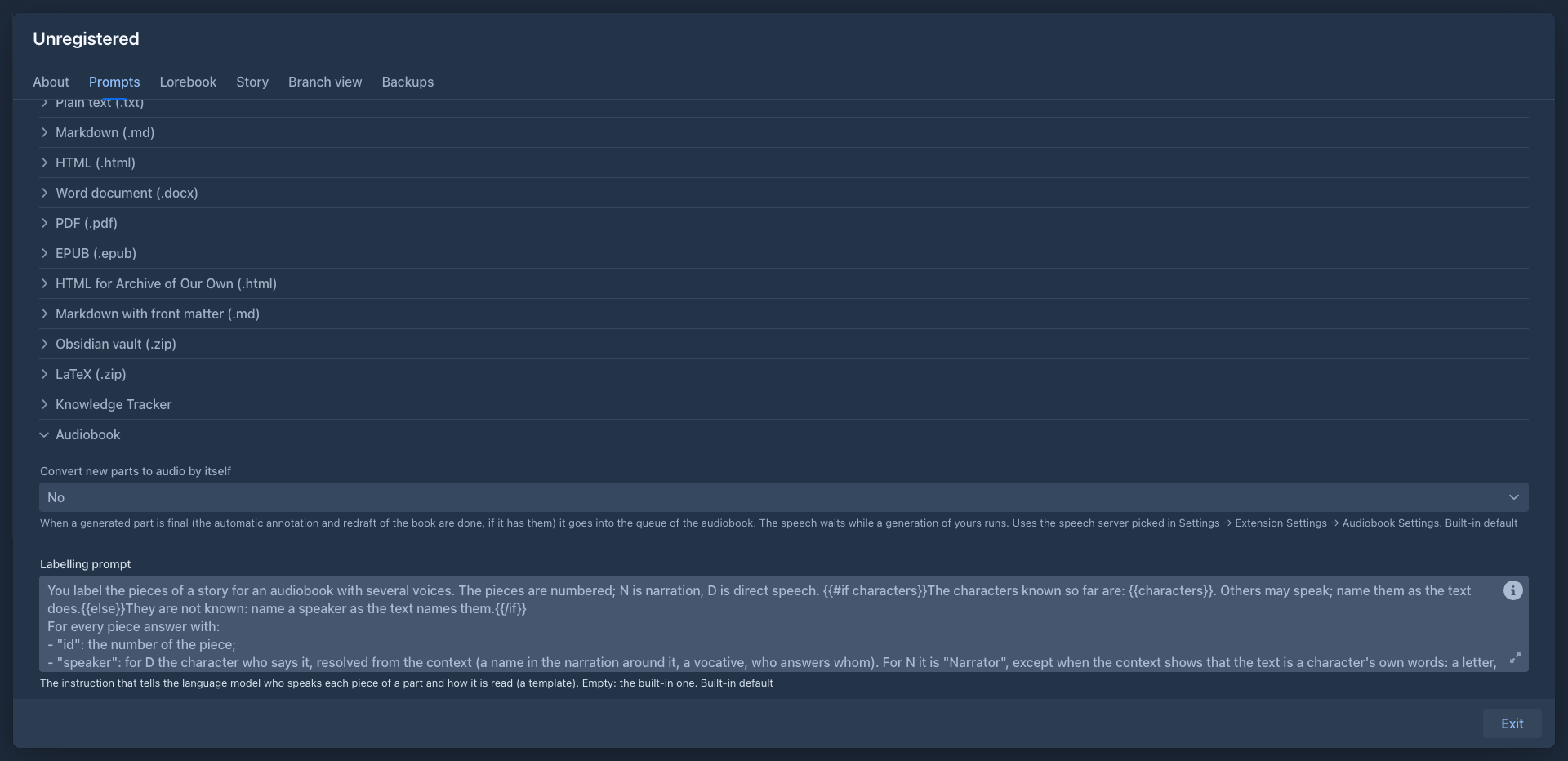
The part goes into your queue, with the cast and the pronunciation of the book. A notice tells you that it is queued and another that its audio is ready or failed; they show only in the page that started the generation, the job is in the Convert to audio window in any case.
Listening
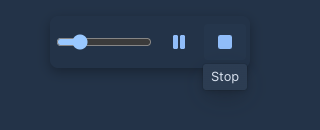
A published book (or the reader) that has parts with audio gets a player bar: play, pause, stop, the speed, the part that is heard marked in the text. It starts from the selection or from the first part in view, plays the parts in order and fetches the next one while the current plays, and the device's media controls know the book. Audio made from an older text of a part is not offered. The audio is served to the owner of the book and, while the book is published, to everybody who can open it; a book that is taken back from publication stops being served at once (at the next part the player loads).
A part without audio
The player stops at a part that has no audio, so that a part of the story is not skipped, and says so. When the extension Read Aloud is installed the bar also shows a speaker button, Read this part (and the next ones without audio) with the voice of the browser. Nothing is read with a machine voice unless you press it. It then reads that part and the following parts that have no audio with the voice of your device, and when it reaches a part that has audio the player takes over again. Later parts without audio in the same listening are read the same way without asking again; Stop silences it, and starting the player anew asks again. The voice, speed and pitch are those of Read Aloud.
Commands
The same things as commands (the command line of the story editor, the command macro of a template, an agent). Parts are numbered as the Convert dialog
numbers them, or named by their handle.
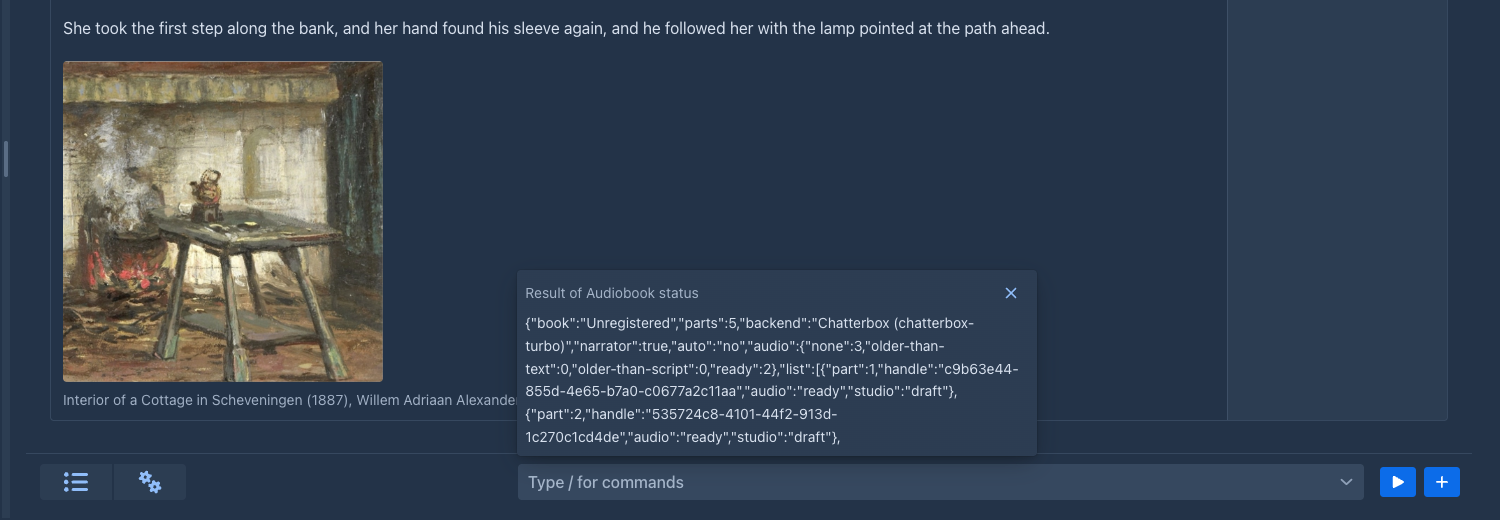
The audio is made for your book, not for the hidden working copy of an agent: an agent can read the cast, and gets a refusal from the other commands, saying that you have to run them. Run them from the command line, or give an agent the task of preparing the book (annotate, review) and convert it yourself.
Notifications
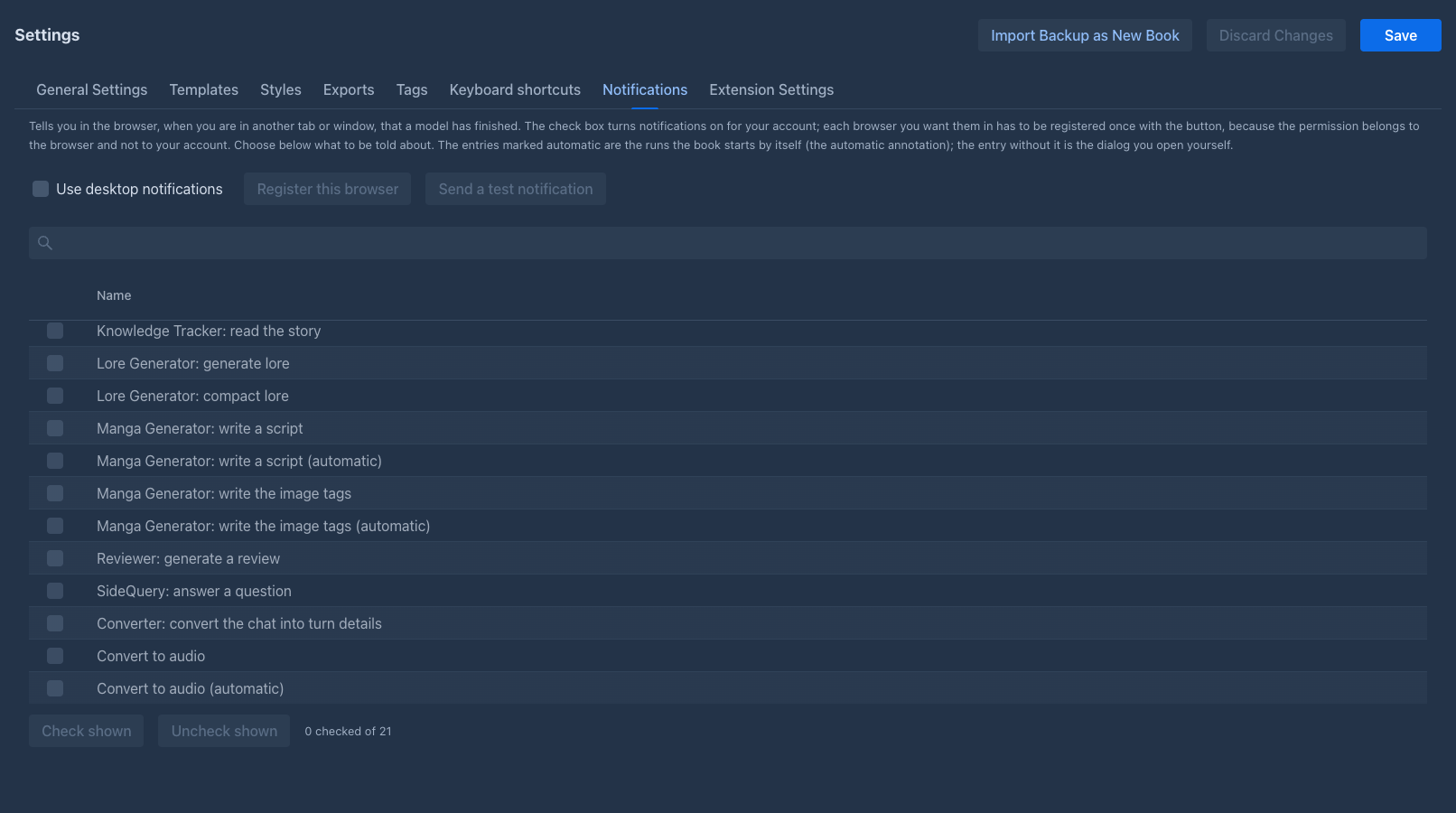
When a batch of conversions is over, the browser can tell you (notifications, so you can leave the tab while the speech server works). In the notification list of the Settings page there are two lines: Convert to audio (the batches you start in the dialog or with the command) and Convert to audio (automatic) (a new part that was made into audio by itself). A batch you stopped does not notify, a batch with a failed part says it failed.
What it does not do (yet)
- Mp3 and wav only (no opus); the loudness of the pieces is what the voices give.
- No sound effects or ambience.
- Two speech engines, Chatterbox and Higgs Audio v3 (in ComfyUI).
- The audition of a voice outside a segment.
- The cast is not part of a book's backup of your actors: a restored book keeps its cast, but names actors that must exist in your account.