Quick start
From a fresh installation to the first generated part of a story. It assumes Marginalia is installed and you are logged in as the administrator.
1. Connect a model
-
Open the Inference Providers tab and click Add Inference Provider.
-
Enter a Name, for example
OpenRouter - Claude. -
In General Settings, set Max Context Size to the context size of the model, for example
32000, and Max Response Tokens to the longest part you want, for example2000. -
In Per Type Settings, enter the OpenAI URL (it ends with
/v1) and the Api Key (leave it empty for a local server that has no key), click Refresh and pick the Model. -
Click OK.
The fields are described in Inference providers, with URLs for common services.
2. Create a protocol
- Open the Protocols tab and click Add Protocol.
- Enter a Name, for example
Default. - Leave Max Context Tokens and Max Reply Tokens empty - the limits of the inference provider are used.
- Click OK.
See Protocols.
3. Set the defaults
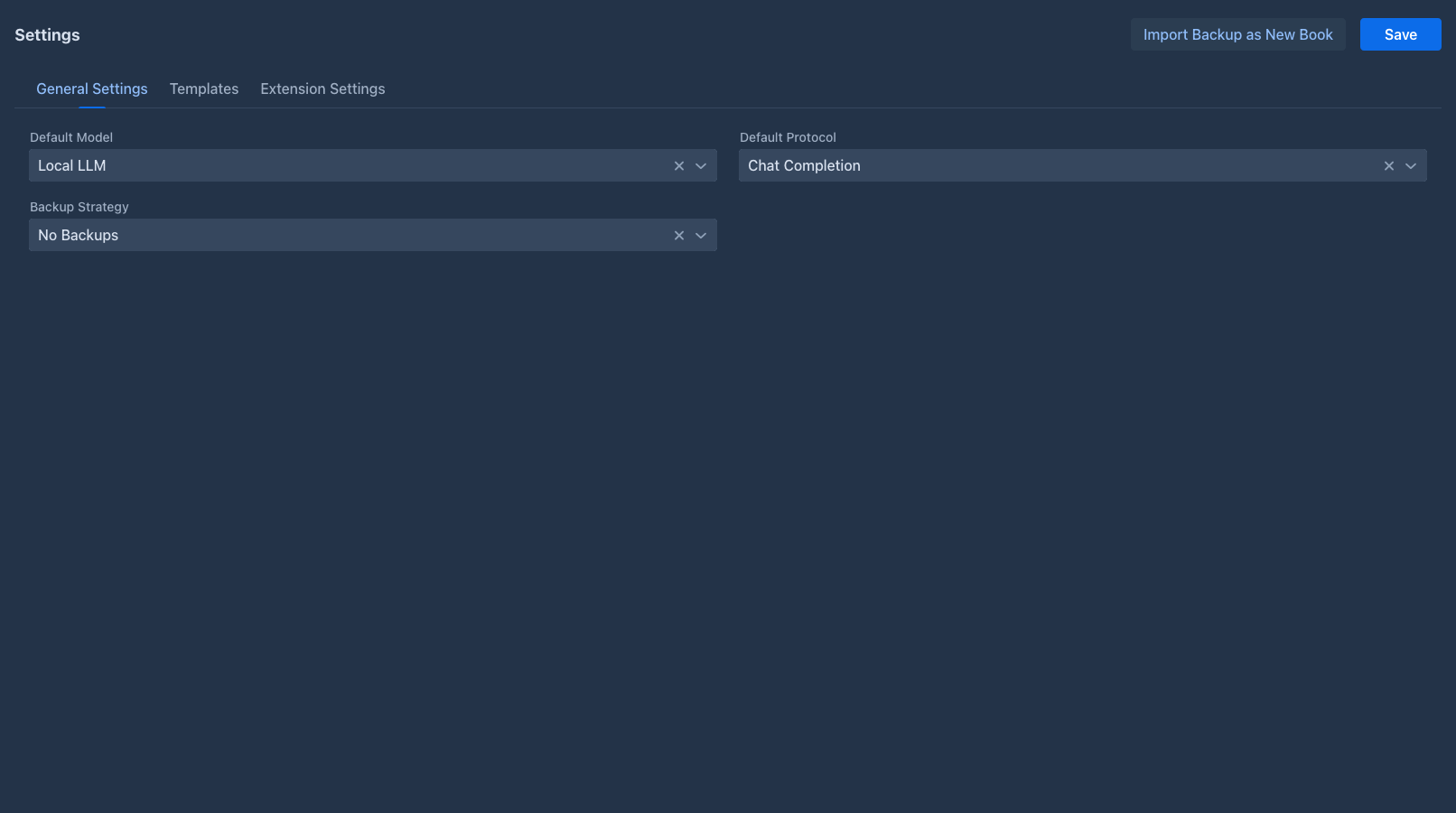
Open the Settings tab and pick the new provider as Default Model and the new protocol as Default Protocol. Click Save. New books then start with both, so you don't have to select them every time.
4. Create a book
- Open the Books tab and click Add Book.
- Enter the name of the book. The book opens.
- On the About tab, check that Model and Protocols are set (they come from your defaults), and add a Description of the story if you want to.
5. Write the first part
- Open the Story tab.
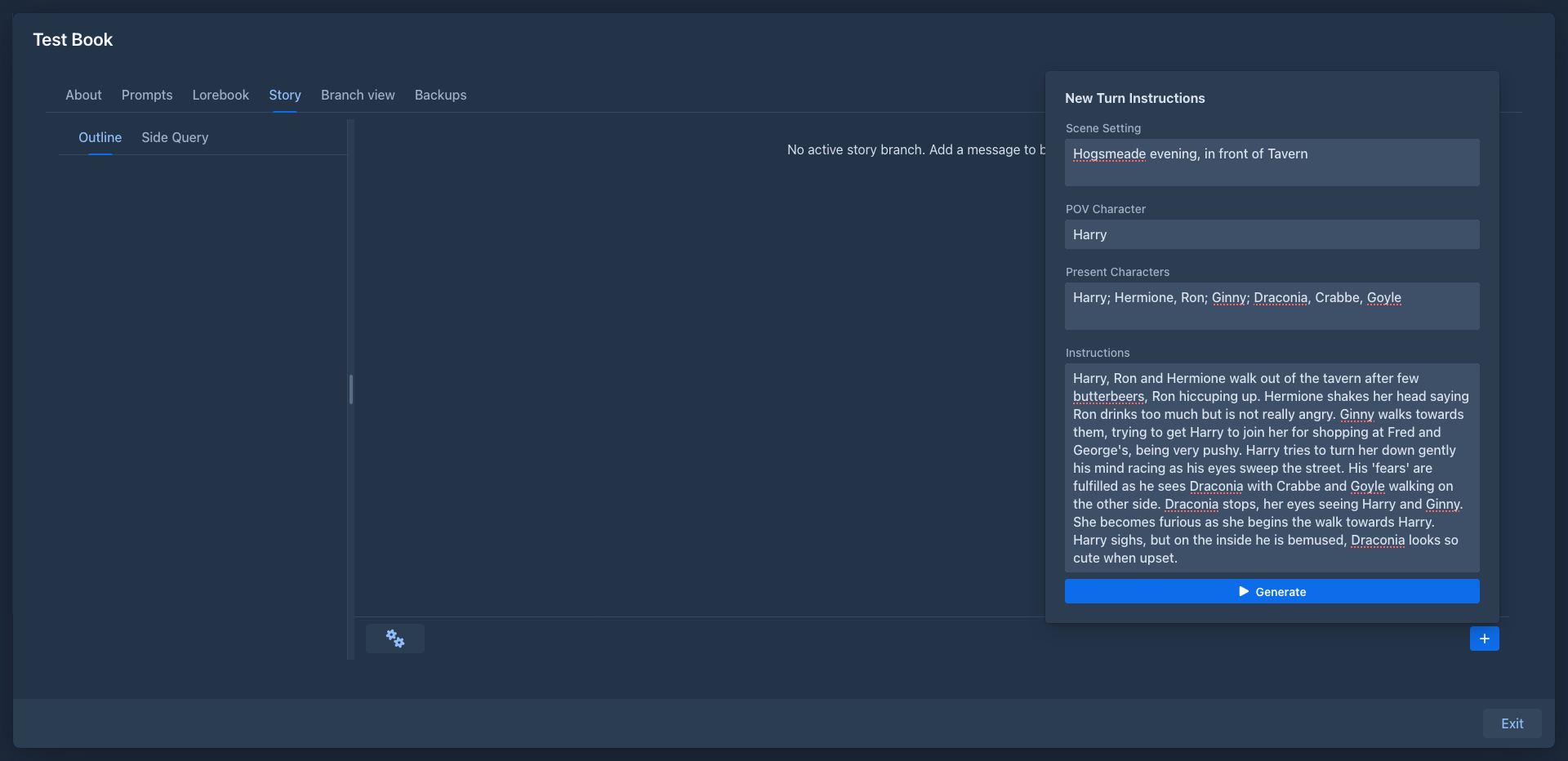
- Click + in the bottom right corner. The New Turn Instructions panel opens.
-
Describe what should happen in Instructions, for example:
A lighthouse keeper on a remote island finds a message in a bottle addressed to her, dated fifty years in the future. Introduce her and the island. About 800 words.
Scene Setting, POV Character and Present Characters are optional; fill them in to give the model more direction.
- Click Generate. The text appears while the model writes it. The red Stop button (in place of +) interrupts the generation.
Click + again for the next part. Each part can be edited, regenerated or swiped for an alternative version from its menu (☰); see Story editor and Branches & story tree.
Next steps
- Describe your world and characters in a lorebook.
- Adjust the style, point of view and tense in the book's prompts.
- Summarize older parts as the book grows.
- Set up book backups.